GPT Image 2.5 Flare & Sunburst
GPT Image 2.5 Flare and Sunburst, side by side. Flare is the faster pick—strong reference fidelity and precise edits, with lower latency than GPT Image 2. Sunburst is slower per image but steadier on fine detail, on-image text, and busy multi-object frames. Generate or edit stills up to 4K with optional transparency; switch using the version control.
- Free credits on signup
- No credit card to start
- No watermark
- Nothing to install
GPT Image 2.5 at a glance
- Modes
- Text to image · Image edits
- Resolution
- Up to 4K
- Text in image
- Strong—Sunburst when type is critical
- Transparency
- Optional transparent background
What GPT Image 2.5 Flare & Sunburst Can Do
Choose Flare when you need fast iteration; switch to Sunburst when the frame needs finer detail, sharper embedded text, or careful multi-object layout—same 4K ceiling, transparency, and edit tools either way.
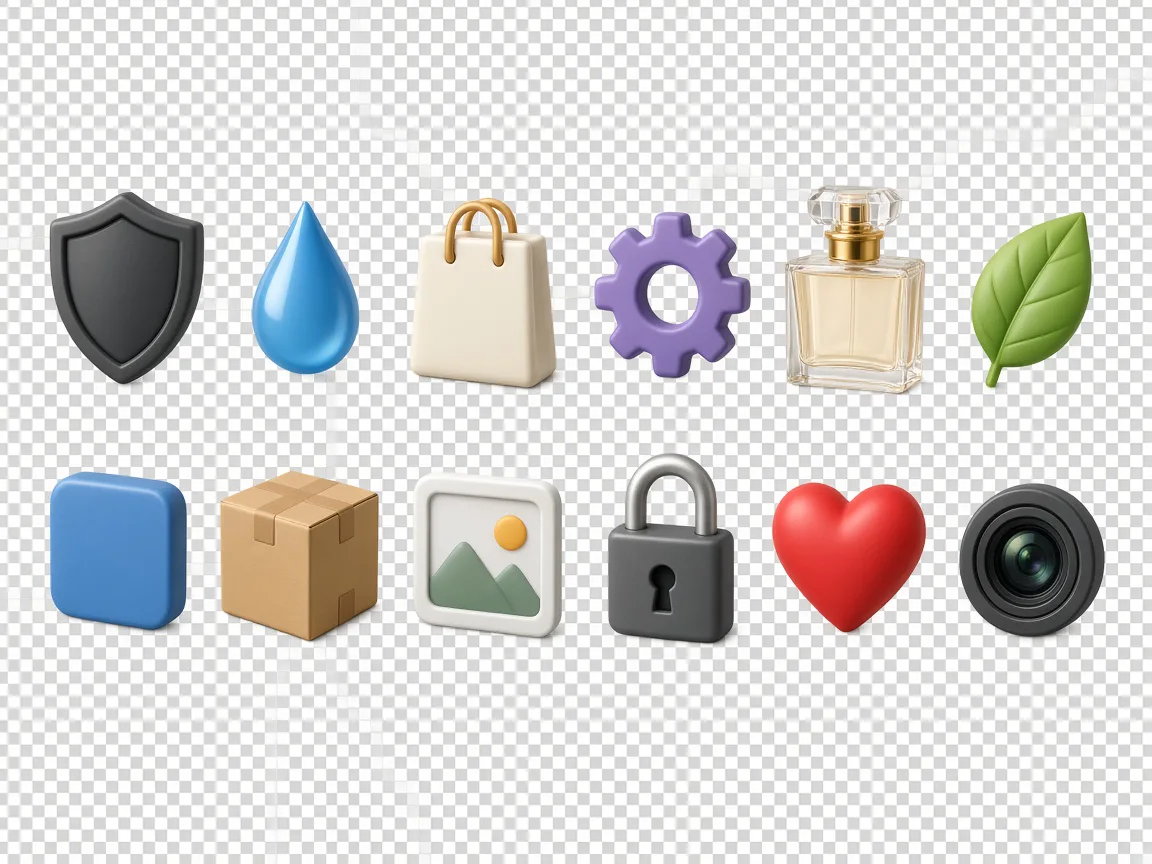
Optional Transparent Backgrounds
Export icons, packshots, and composites with a clean transparent background—skip the manual knockout.

On-Image Text That Stays Sharp
Headlines, UI labels, and promo type render as letters instead of mush—spell the copy exactly. When lettering or multi-object layout is the priority, switch to Sunburst.
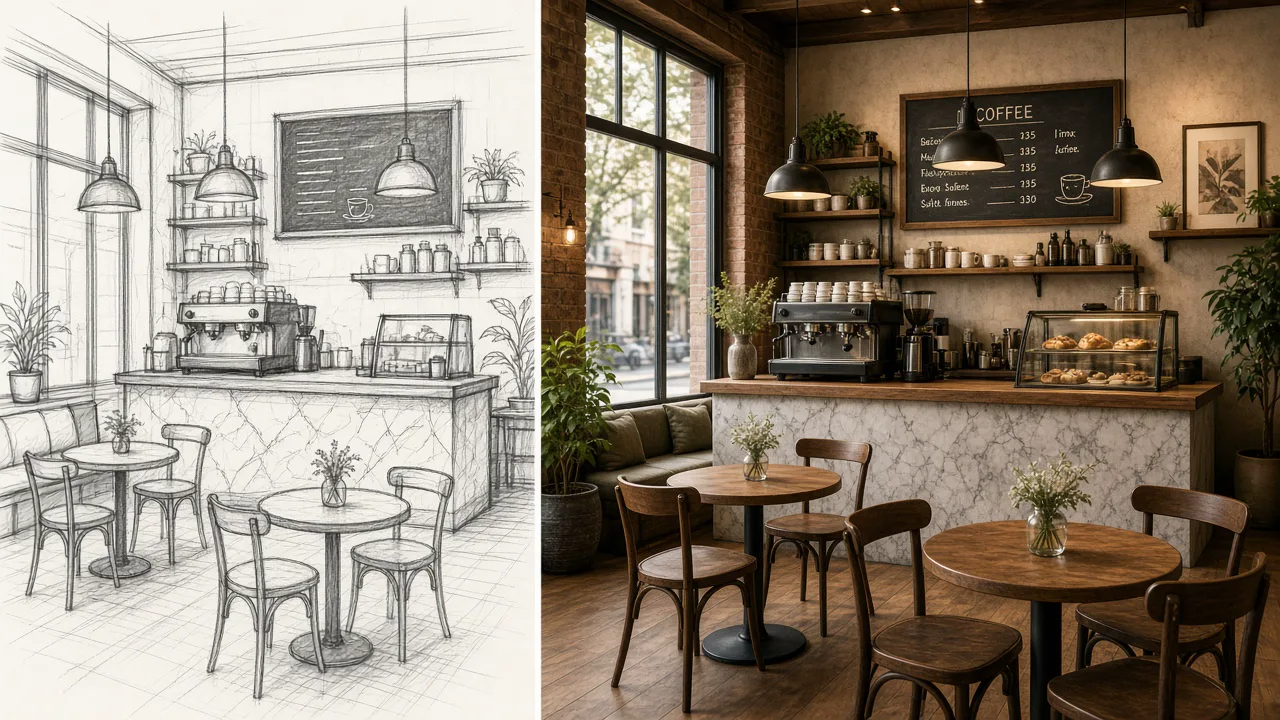
Flare and Sunburst
Two variants on one page: Flare is quicker—lower latency than GPT Image 2—for drafts and volume; Sunburst is slower per image but steadier on fine detail and on-image text for delivery stills. Switch anytime using the version control.
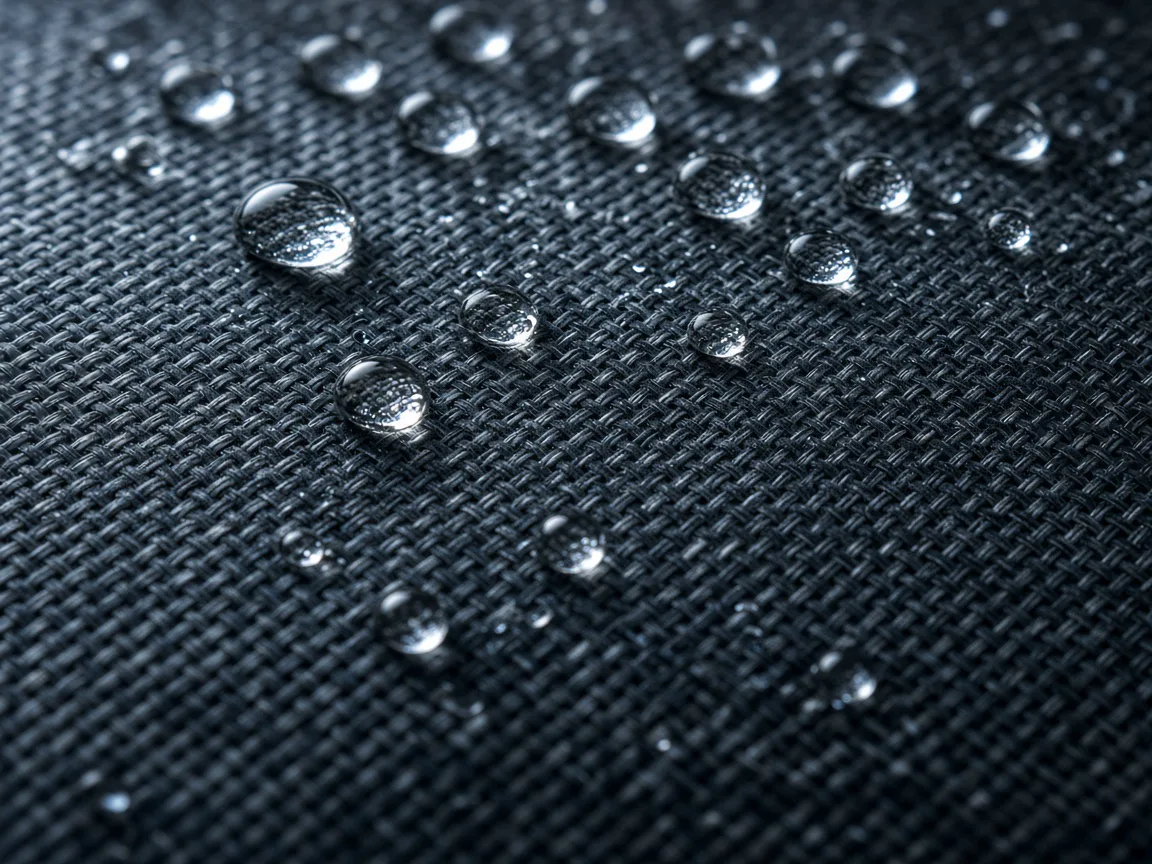
Up to 4K Delivery Stills
Draft quickly, then step up resolution for campaign heroes without leaving GPT Image 2.5.
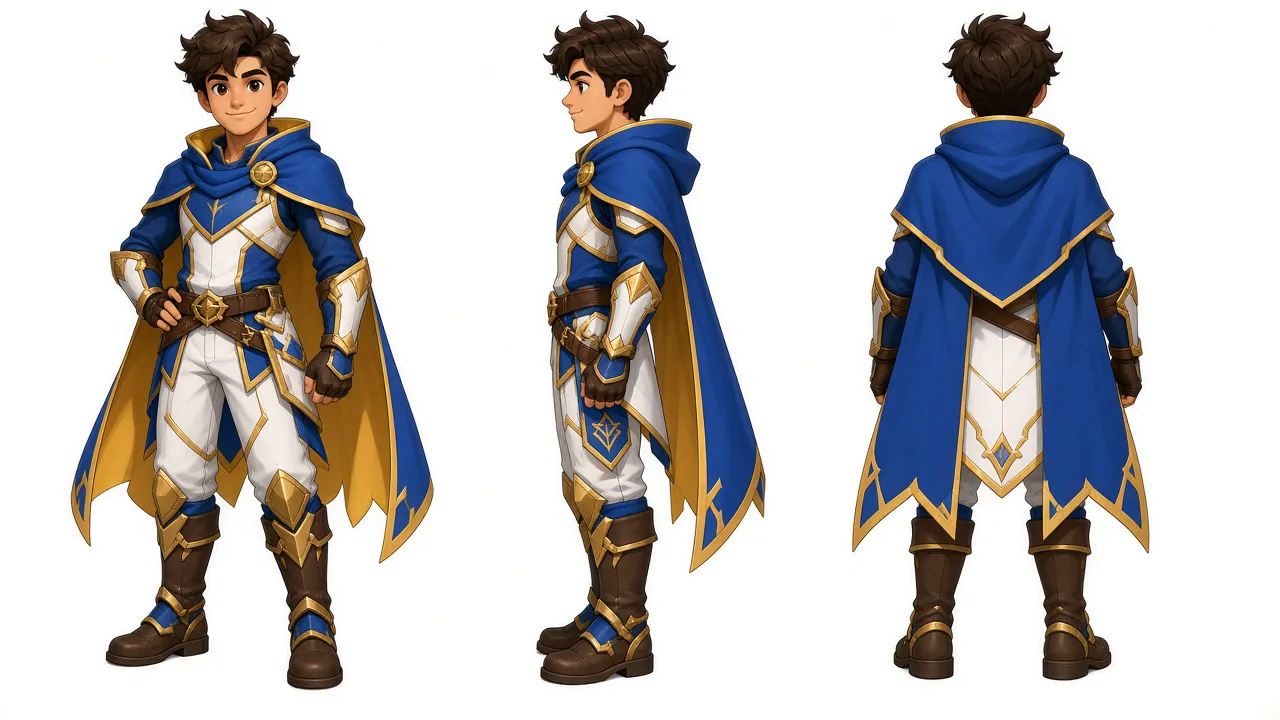
Reference Fidelity Across Angles
Keep a character or product locked while you change pose, set, or wardrobe.
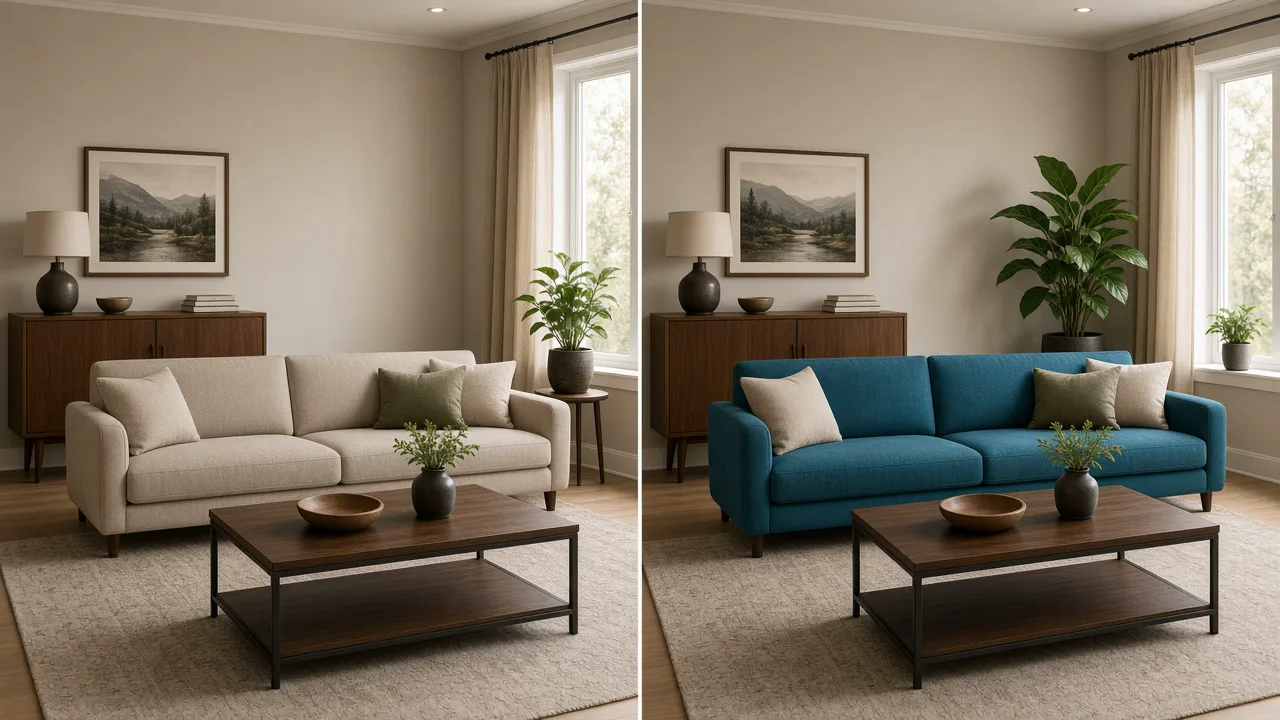
Precise Image Edits
Swap colors, add props, or restyle a room while structure stays intact.
How to Use GPT Image 2.5 Flare & Sunburst
Three steps from brief to a still—choose Flare or Sunburst using the version control:
 01
Write the Brief or Start From a Photo
Text to image for net-new frames; edits when a plate already exists.
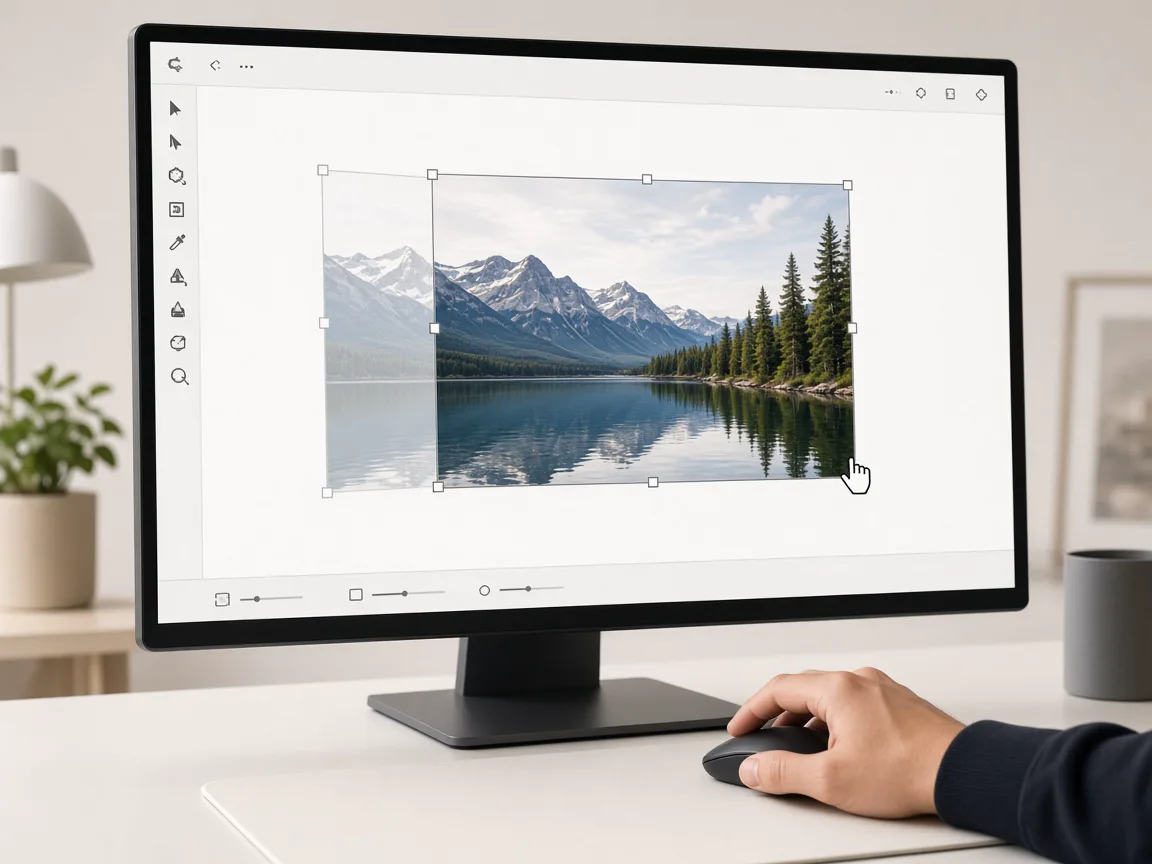 02
Add References and Exact On-Image Words
Attach likeness or product refs and type any headline exactly as it must appear.
 03
Choose Variant, Size, Transparency, Iterate
Default is Flare for speed; switch to Sunburst when detail or on-image text must land. Pick output size up to 4K, turn on transparent background in the settings, change one instruction per rerun.
What People Make With GPT Image 2.5
Icons with transparent backgrounds, type-heavy ads, UI mocks, and cutout product heroes—Flare for volume, Sunburst when the frame is fussy.
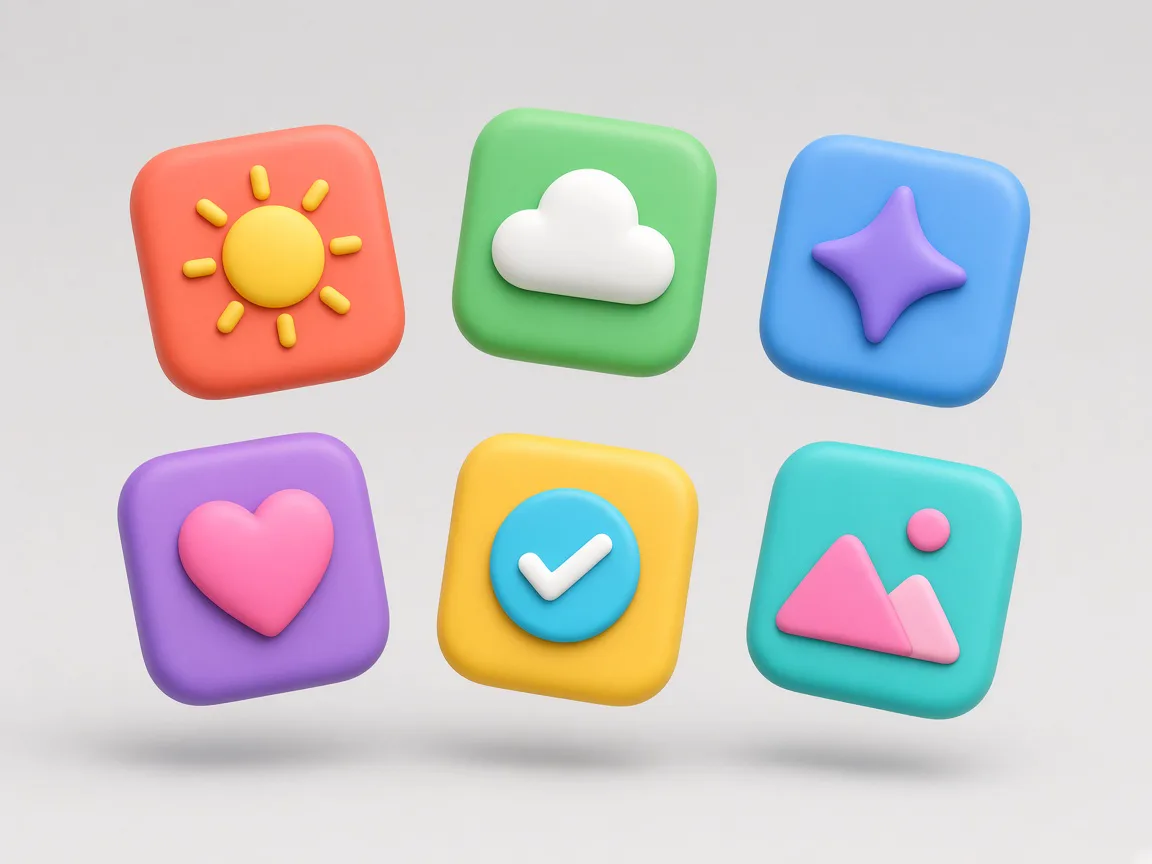
Transparent Icon and Sticker Packs
Generate icon sets with optional transparent backgrounds so they drop straight onto light or dark UI.
- Exact title string — Misspellings in the prompt become misspellings in the art.
- 2:3 or 1:1 — Match the storefront thumbnail ratio early.
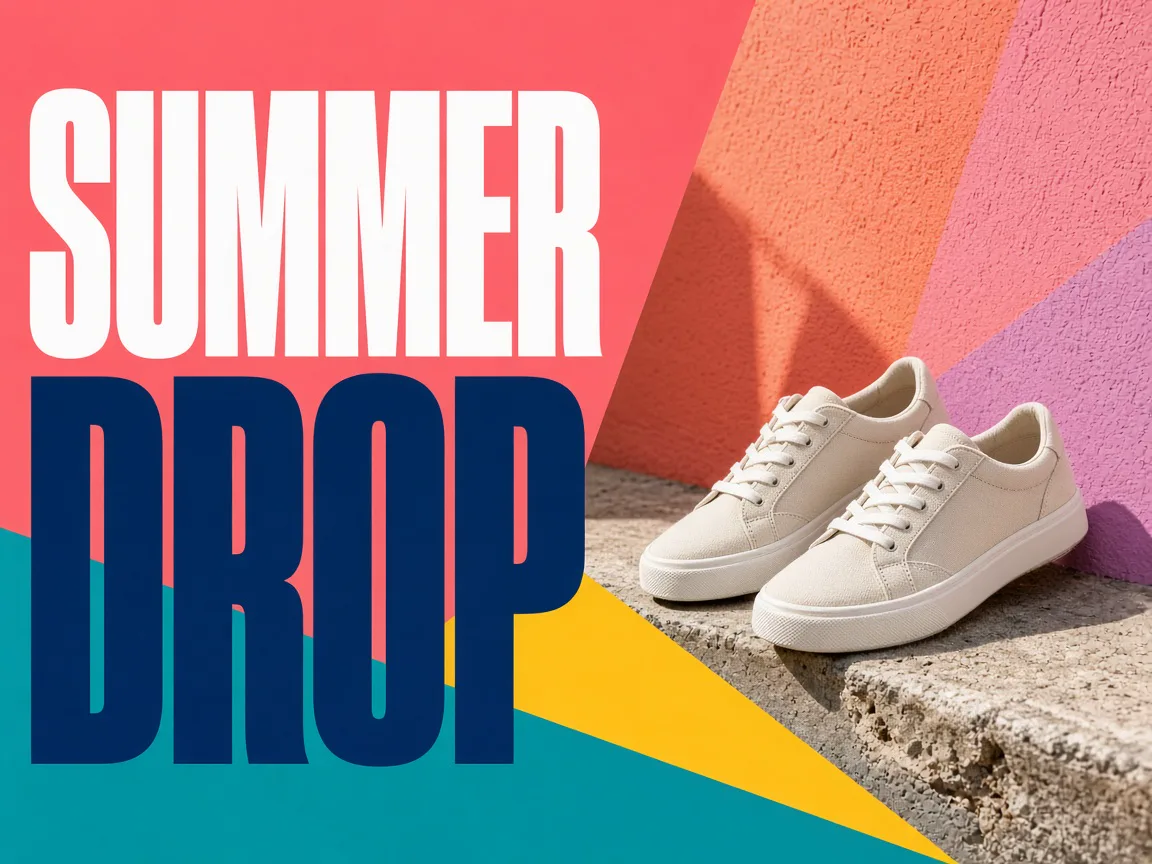
Type-Forward Social Ads
SUMMER DROP-style posters where the headline must read correctly on first glance.
- Background = transparent — Set it before you generate, not after.
- Simple silhouettes — Busy scenes fight clean transparent edges.
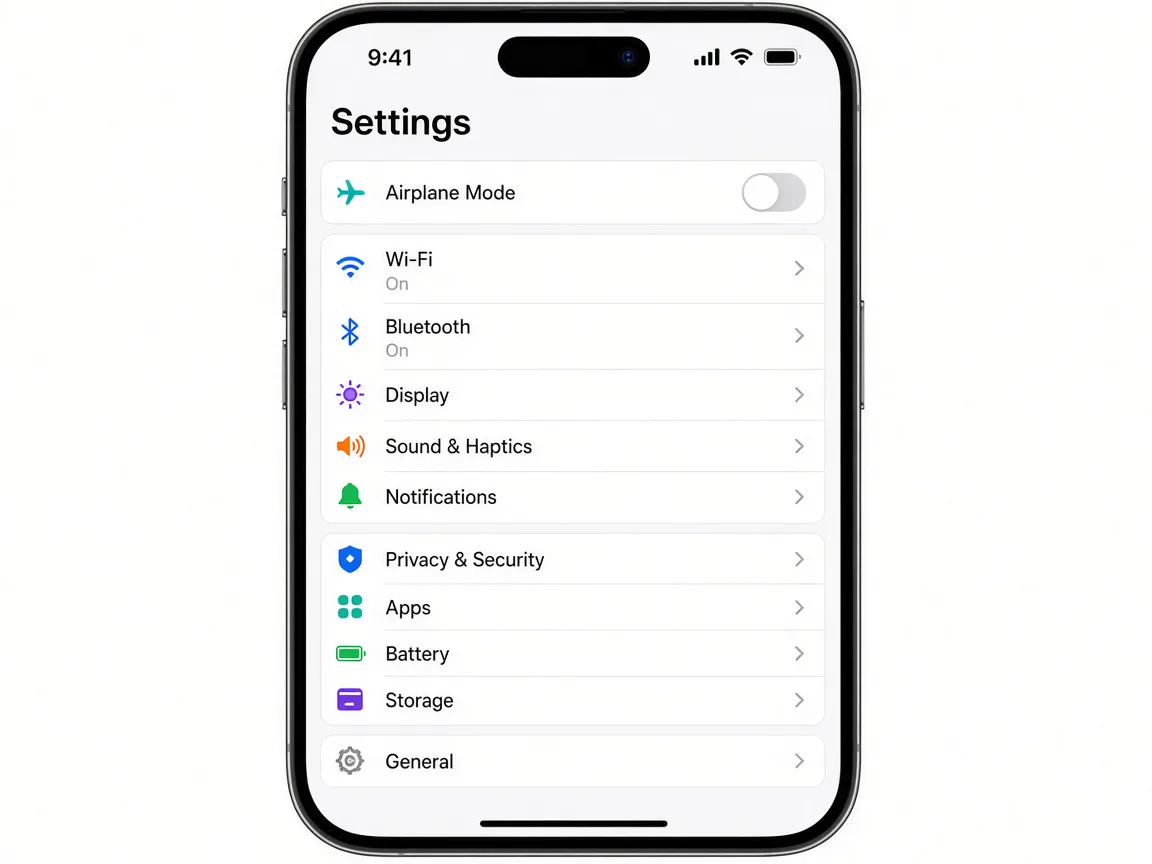
UI Mocks With Legible Labels
Settings lists and app chrome where tiny words stay words.
- Three to six words — Headline length is a legibility feature.
- High contrast brief — State light-on-dark or dark-on-light.
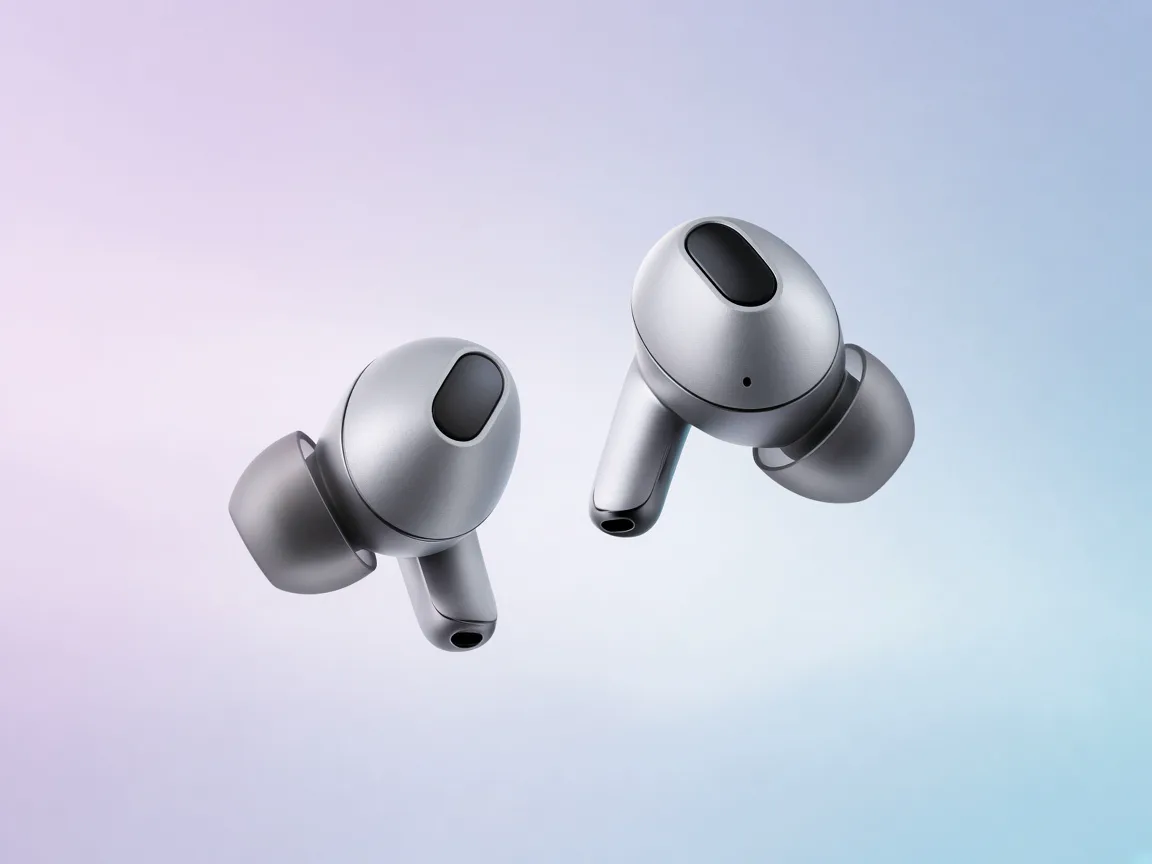
Product Cutouts for Composites
Earbuds and packshots with clean edges for banners and landing pages.
- Describe the delta — Keep the bottle; change the table.
- One change per take — Stacked edits are harder to reverse.
How to Write GPT Image 2.5 Prompts
Both variants reward concrete nouns: subject, light, materials, and every word that must appear on the frame. Turn on transparent background in the settings when you need it. Prefer Sunburst when the prompt hangs on fine text or many distinct objects.
A GPT Image 2.5 brief usually covers
- 1Subject and materials — what is in frame and how it feels
- 2Light and lens — rim light, softbox, 50mm feel
- 3On-image text — exact spelling of headlines or UI labels
- 4Transparency — turn on in settings when compositing
- 5Edit intent — what must change vs what must stay locked
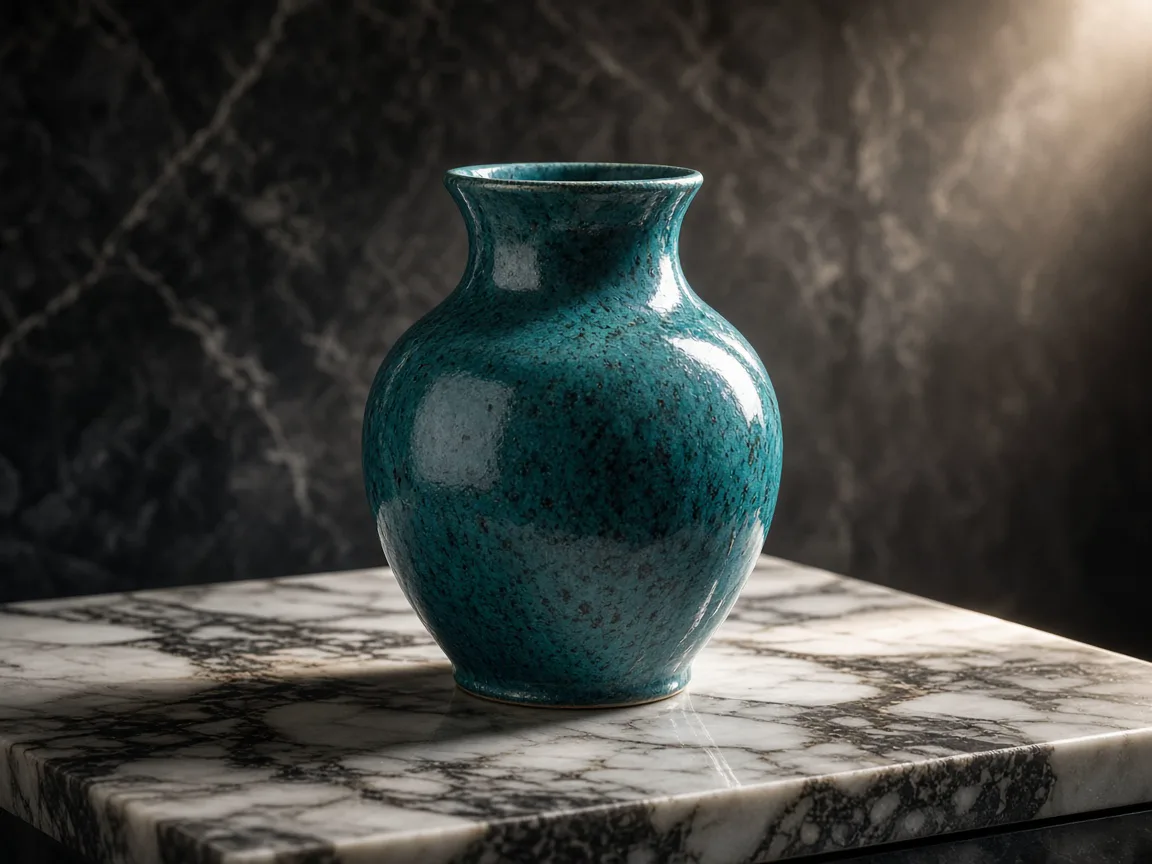
make a cool vase photo
Teal speckled ceramic vase on white marble, dramatic rim light from upper right, catalog hero, transparent background.
sale poster
Bold poster type SALE 50 OFF centered over diagonal coral teal yellow stripes, clean sans lettering, no extra logos.
change the sofa somehow
Same living room plate; recolor the sofa to teal and add a large bird-of-paradise plant behind the right arm; keep windows and rug unchanged.
GPT Image 2.5 Flare & Sunburst FAQ
GPT Image 2.5 is OpenAI's 2.5-generation image family for text-to-image and edits. Flare is the faster variant (default on this page)—lower latency than GPT Image 2 with strong text, reference fidelity, up to 4K, and optional transparency. Sunburst takes longer per image and holds finer detail—better for embedded text and careful multi-object composition. Switch between them using the version control.
Use Flare for drafts, high-volume stills, and when turnaround matters most. Use Sunburst when on-image text, fine detail, or multi-object layout must hold—expect a slower generation for that precision.
Signup credits let you generate before paying. No card is required to create an account.
Yes—turn on transparent background in the settings; useful for icons, stickers, and composites.
GPT Image 2.5 is strong on lettering. Spell headlines and UI labels exactly in the prompt.
Output sizes scale up to about 4K depending on the selected preset.
Yes. Switch anytime using the version control on this page—draft fast with Flare, then move to Sunburst when on-image text or fine detail needs to hold. Keep your prompt and settings; no need to leave the page.
Studio exposes GPT Image 2.5 Flare and Sunburst interactively; programmatic access is listed in the platform API catalog.
Make Your First GPT Image 2.5 Frame
Open Flare for a fast first export, or switch to Sunburst when the still needs finer detail—spend signup credits either way.