Free AI Image to Image Generator
Upload a picture and this AI image to image generator changes only what you name — the style, the background, an object, the angle — and leaves the rest of the composition where it was. No masking, no layers, no editor to learn. New accounts come with credits, so trying it costs nothing.
- 4K
- Max resolution
- 10-30s
- Usually takes
- None
- Watermarks
What You Can Do With Our AI Image to Image Generator
A few of the edits people run here every day.
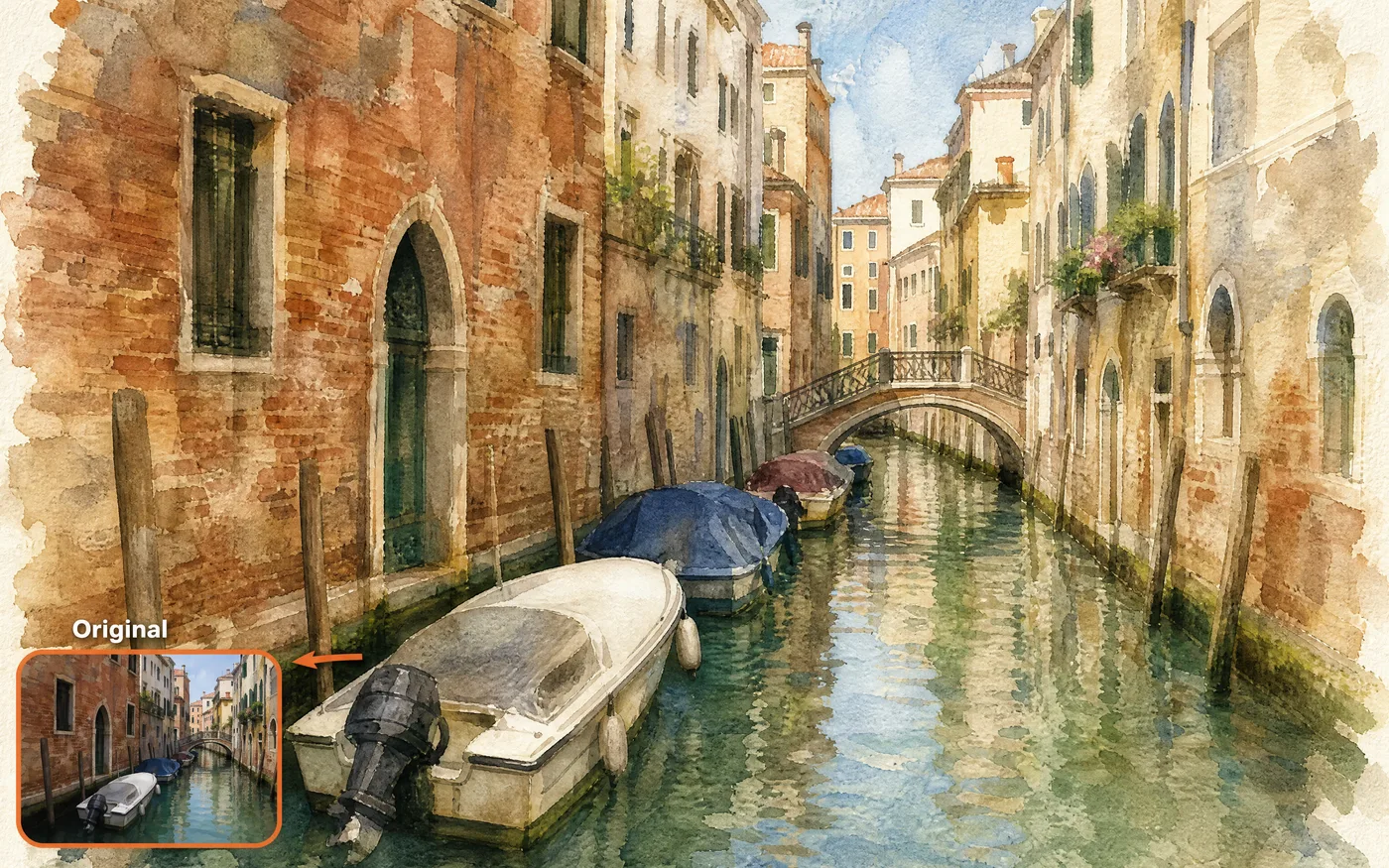
Image Style Transfer
Name a style in words and the photo gets rendered in it, with the composition and the subject left where they were.
- Composition stays put — Only the surface changes, not what is in the frame.
- Any medium — Anime, watercolour, 3D render, line art — say which.
Edit Objects and Clothing
Change a colour, swap a garment, remove something you don't want, or add a detail that was never there.
- Point edits — Change one thing, keep everything else.
- No masking — Describe it instead of drawing a selection.
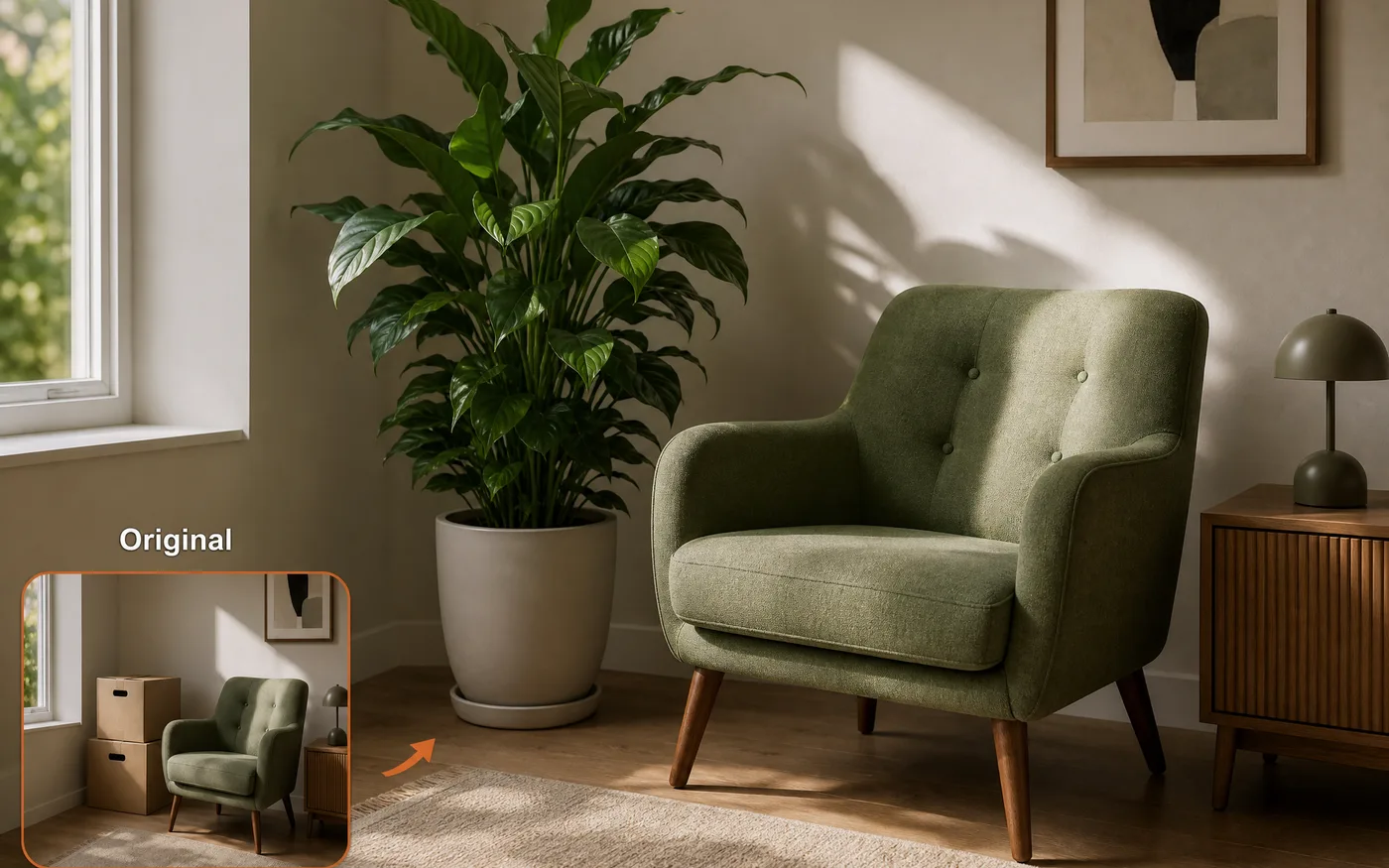
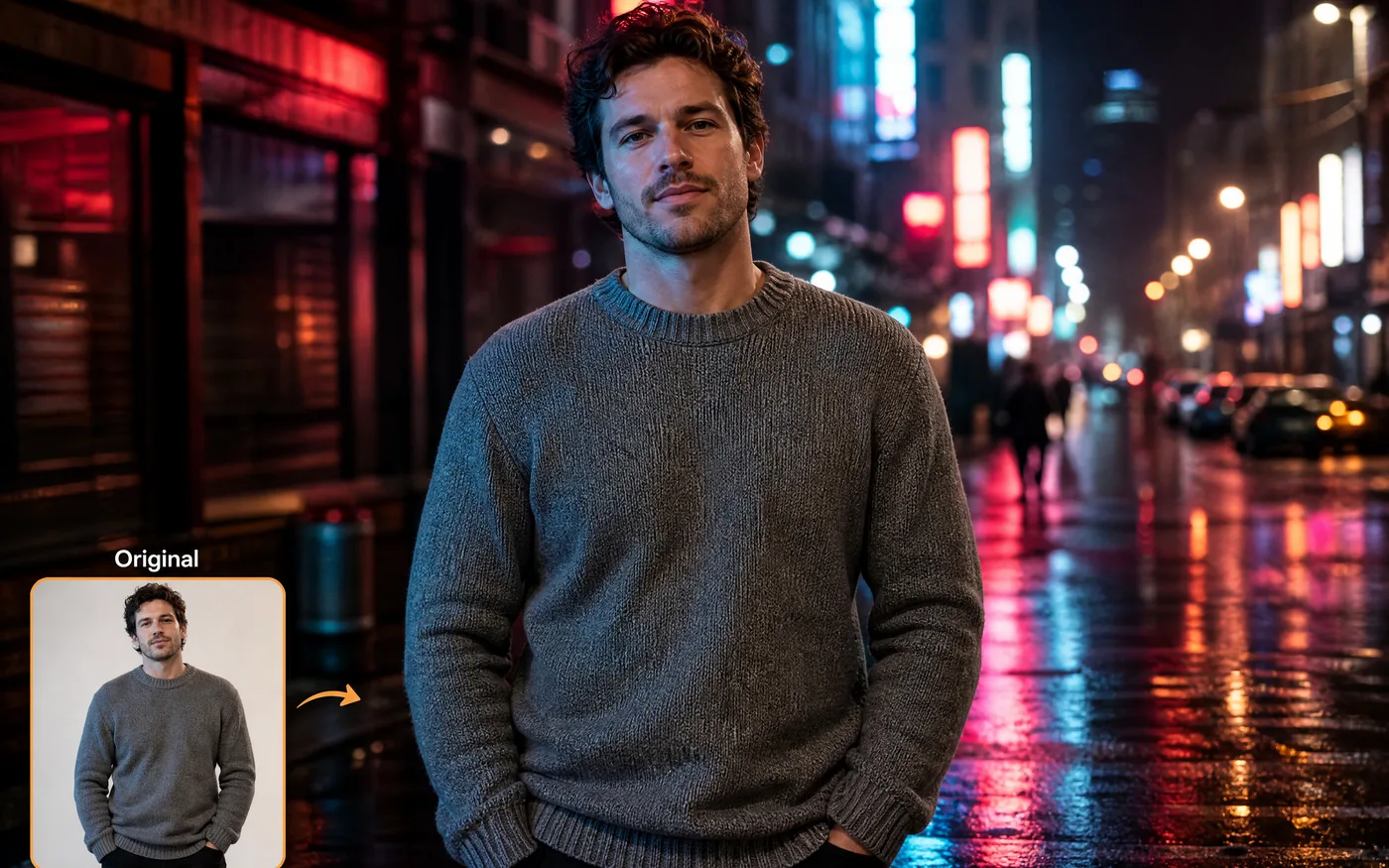
Image to Image Background Swaps
Put your subject somewhere else — a studio backdrop, a street at night, a clean white product surface.
- New setting, same subject — Lighting follows the new background.
- Product-ready — Clean surfaces for listings and ads.
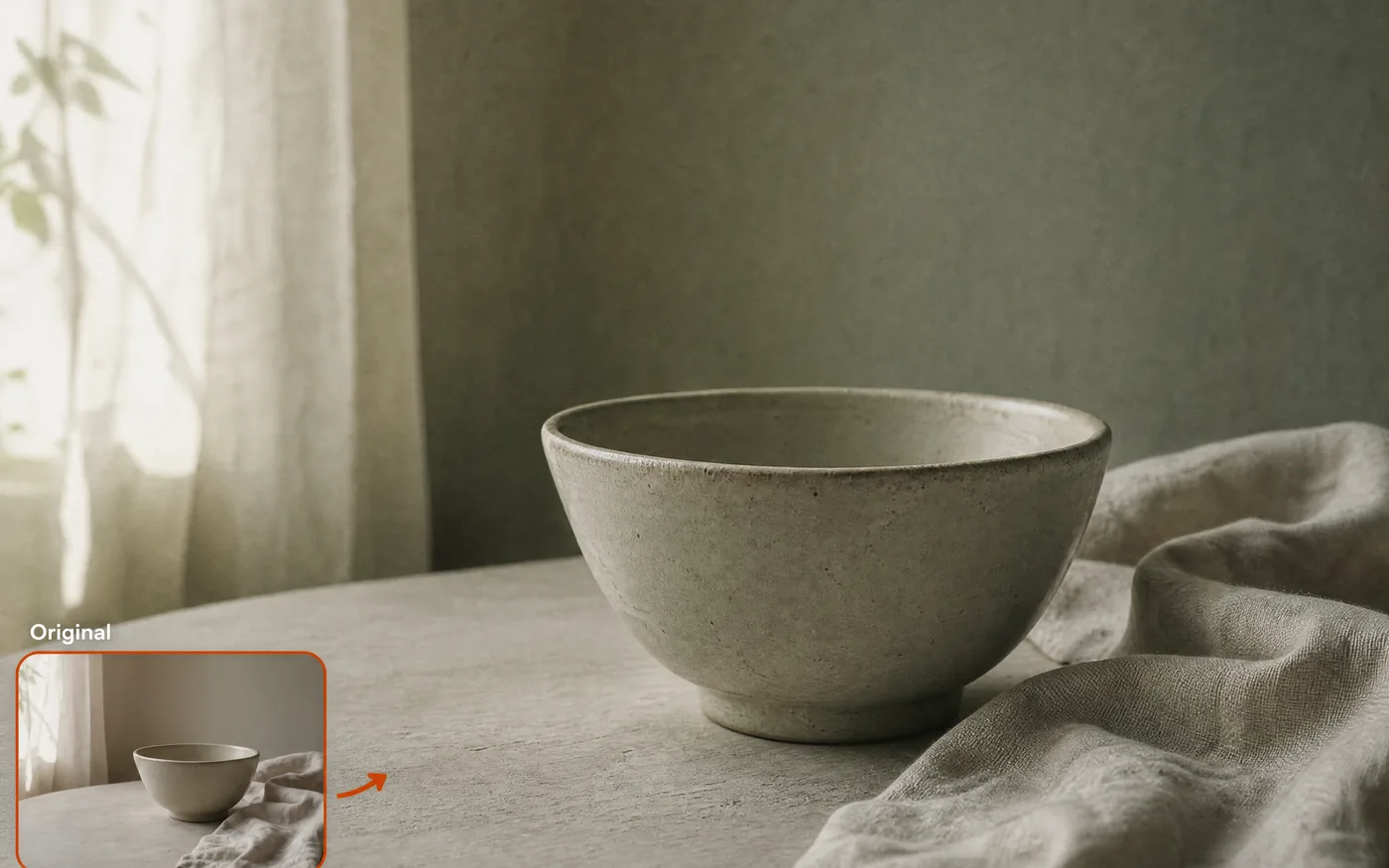
Match a Reference Image
Upload a picture whose look you want and the AI borrows it — palette, lighting, texture, framing — for the image you are making.
- More than style — Palette, lighting, and framing come across too.
- Keep a set consistent — Reuse one reference so a whole batch looks related.
How to Use Our Free AI Image to Image Generator
Three steps to your first edit, free to start:
 01
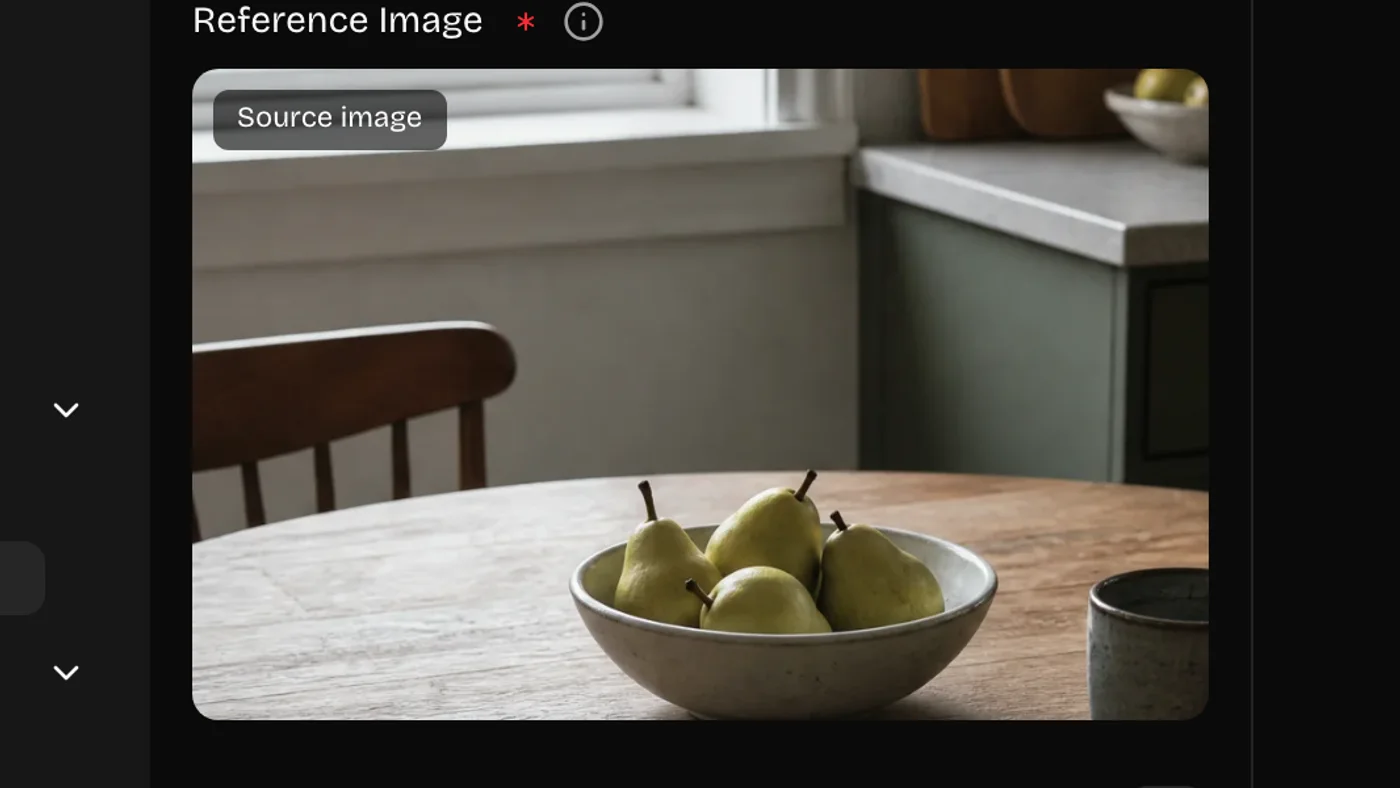
01Upload Your Image
Drop in a JPG or PNG. A sharp, well-lit original gives the model more to work with, but it doesn't need to be perfect.
 02
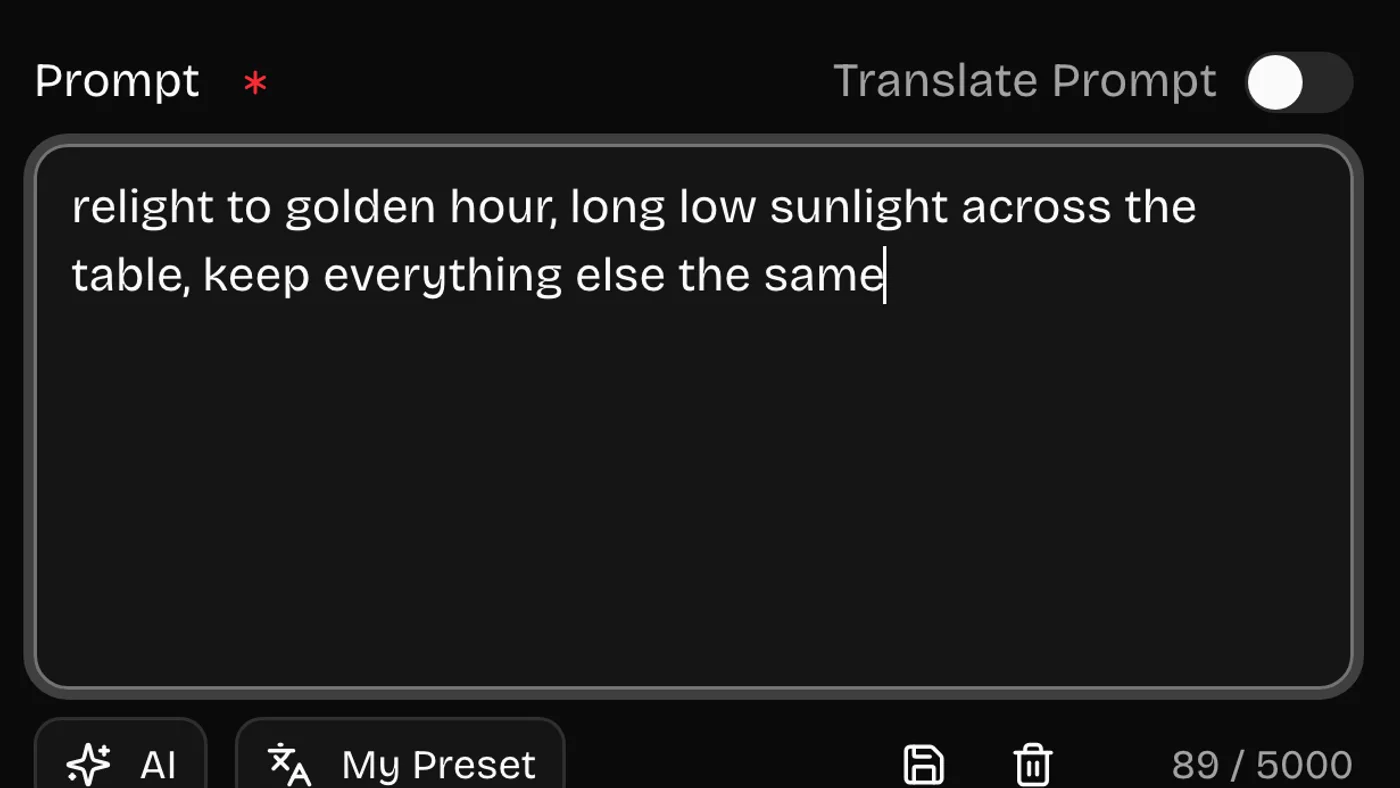
02Say What Should Change
Describe the edit and, just as importantly, what should stay the same — subject, background, framing. Being specific is what keeps the rest of the picture intact.
 03
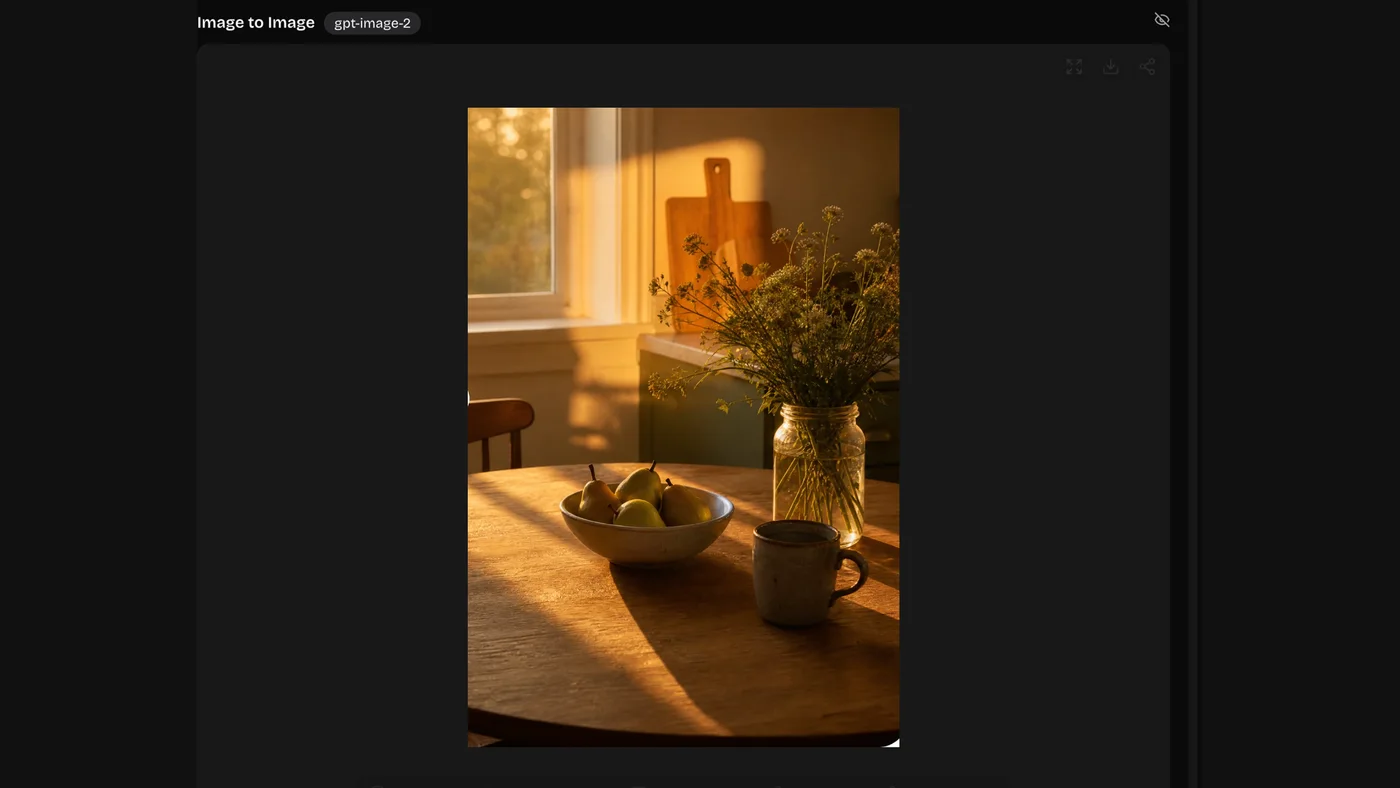
03Generate and Download
Run it, compare against your original, and download the full-size file. Every version stays in your history so you can adjust one word and try again.
Image to Image Edits You Can Ask For
Name one change at a time. The narrower the instruction, the less the rest of the frame moves.
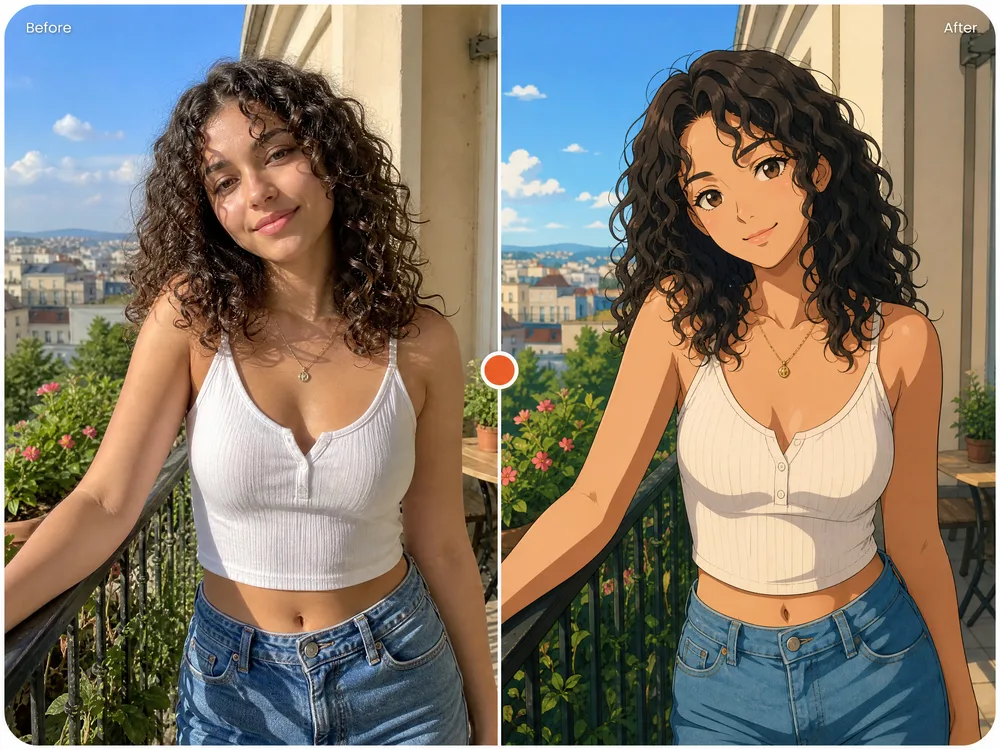
Style and Medium Swap
Turn a photo into anime, watercolour, or 3D and keep the pose.
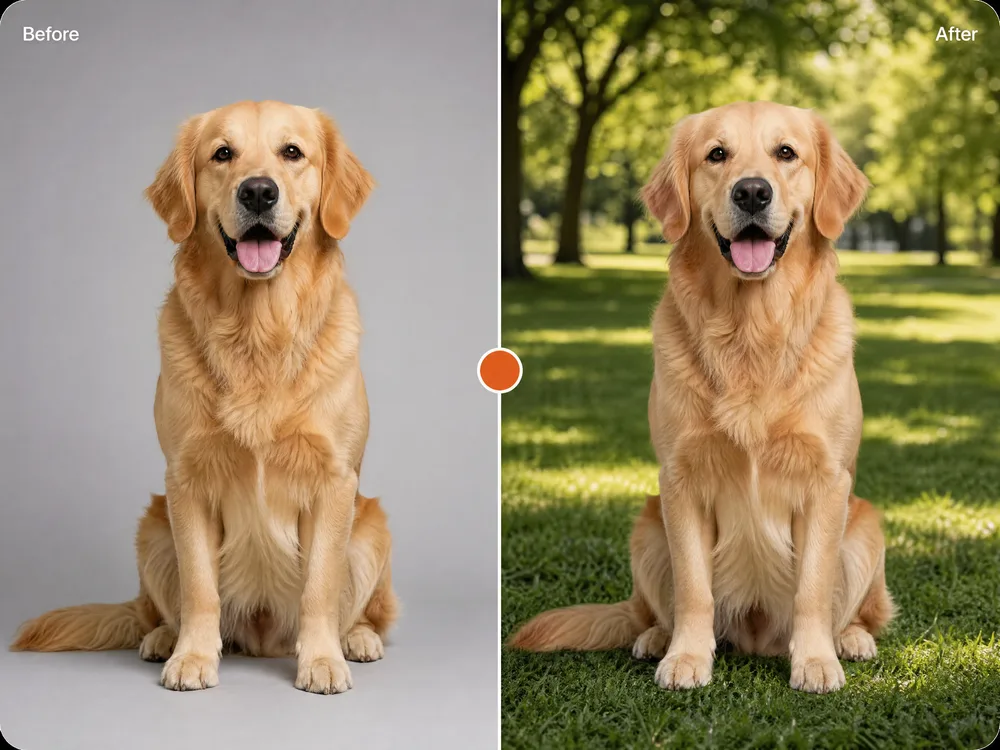
Background Replacement
Put the same subject somewhere else without cutting it out.
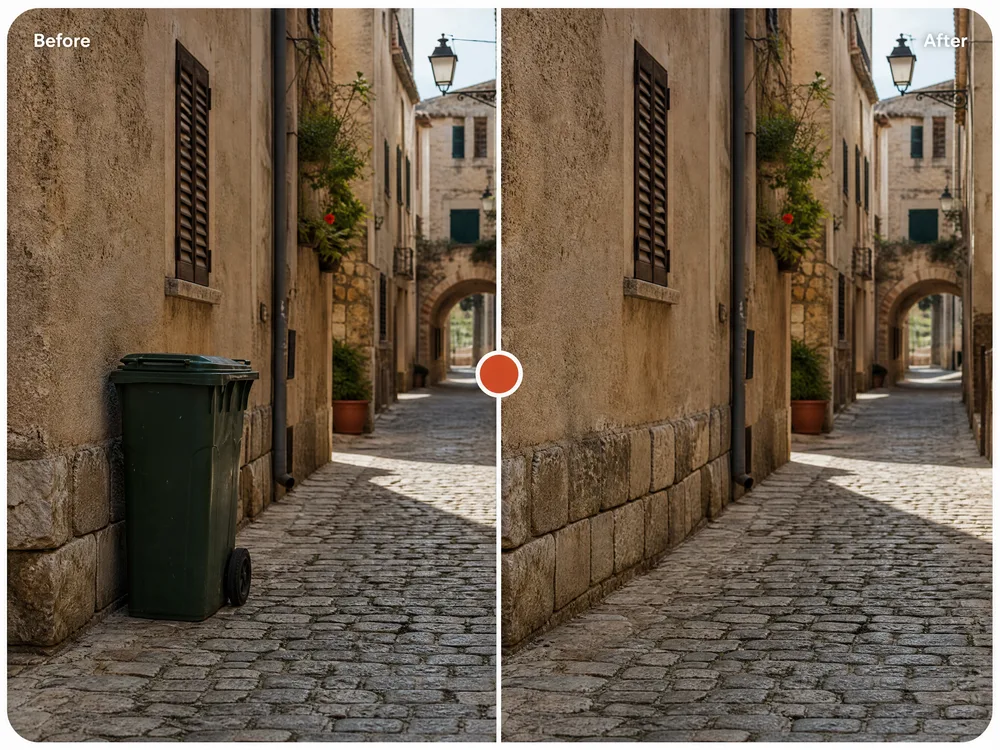
Object Add and Remove
Take out the bin, add the plant — the light stays consistent.
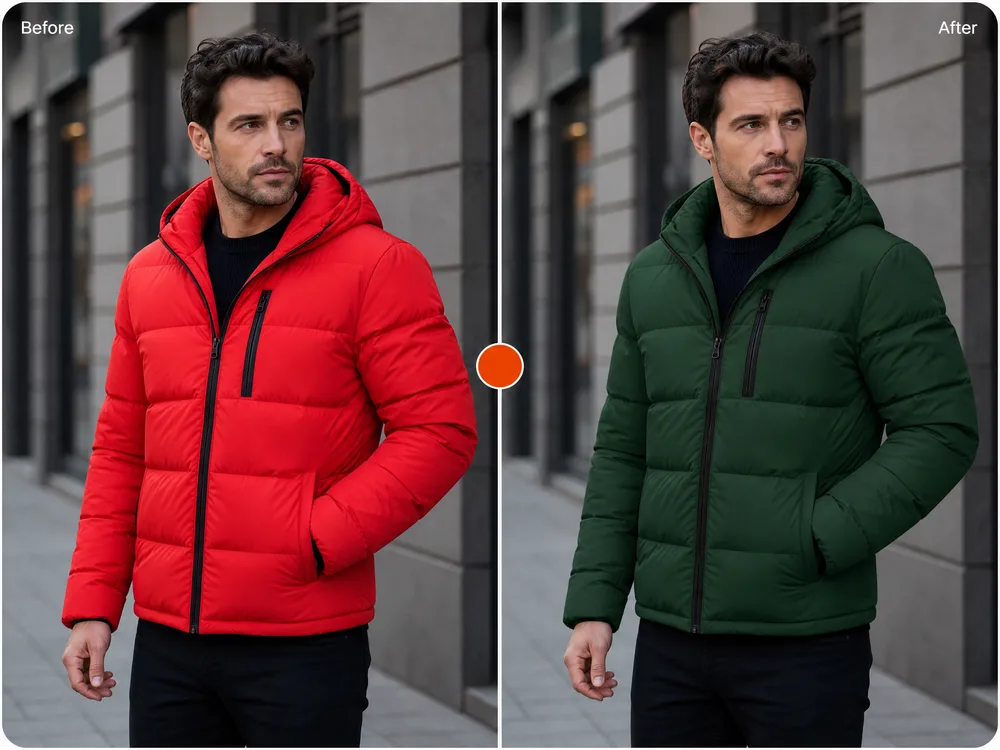
Outfit and Colour Changes
Recolour clothing or a product without a reshoot.
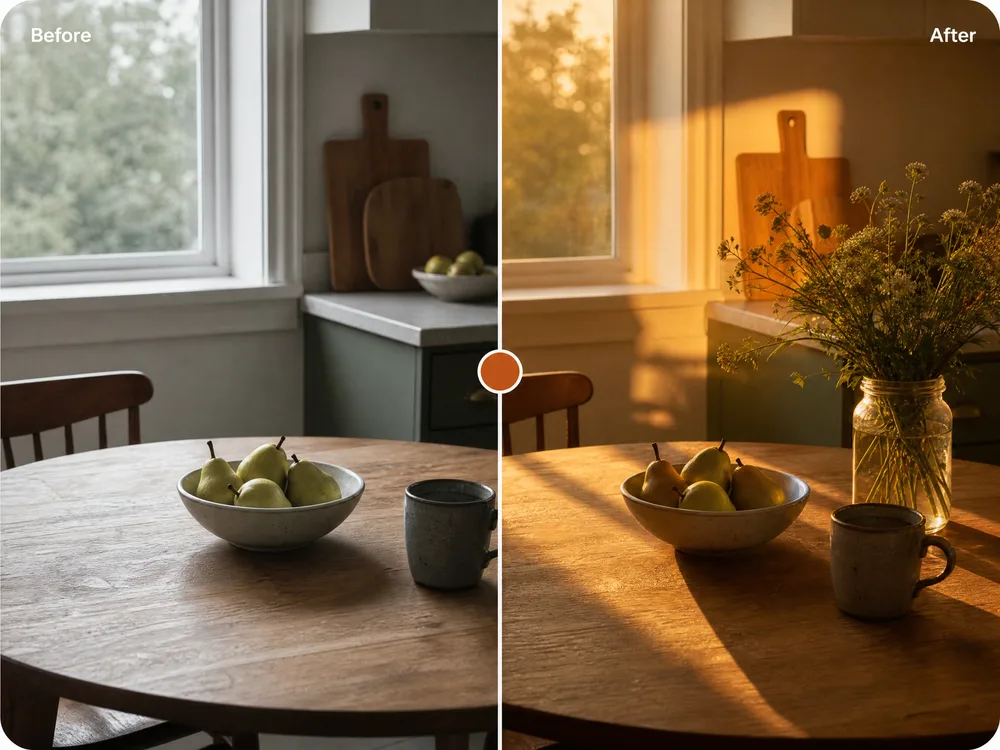
Lighting and Time of Day
Same frame, golden hour instead of flat noon.
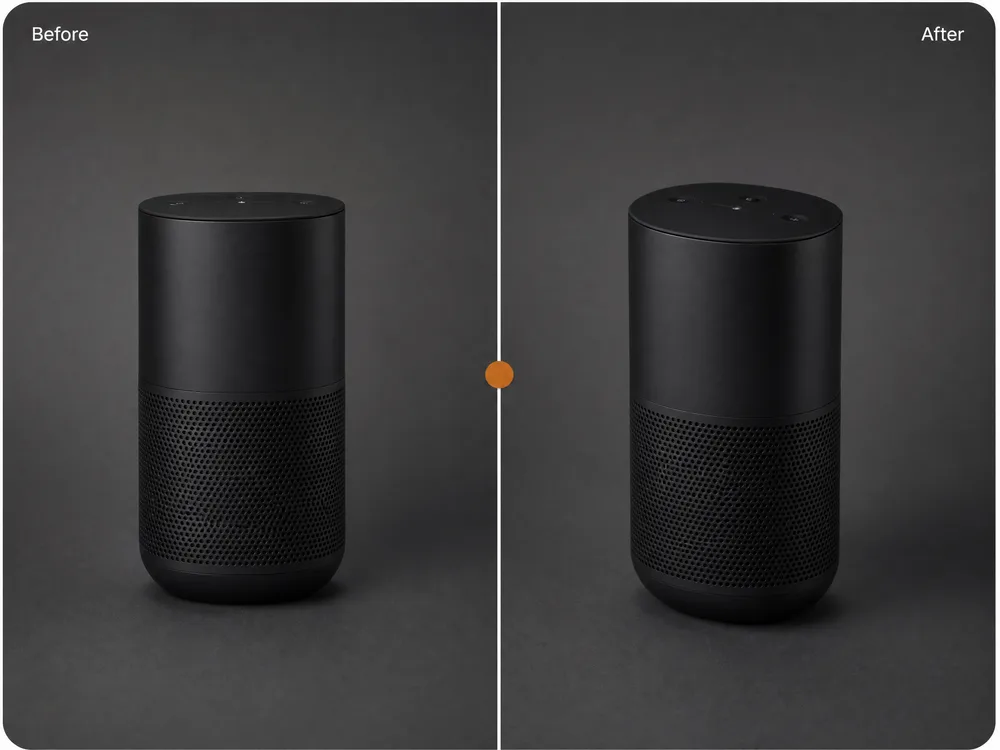
Camera Angle Shifts
Ask for a new viewpoint on the same subject.
How to Write Better Image to Image Prompts
When an edit changes too much — or too little — it's almost always the wording, not the model.
Good wording covers four things
- 1What changes — the one thing you want different
- 2What stays — subject, background, framing, lighting
- 3How much — a subtle pass or a complete restyle
- 4The target look — style, material, colour, time of day
make it better
Brighten the shadows and warm the white balance slightly, keep the subject, pose and background exactly as they are
"Better" means nothing to a model. Naming the adjustment — and what to leave alone — is what keeps your photo recognisable.
anime style
Redraw as a cel-shaded anime illustration, same pose and camera angle, cool blue palette, keep the background layout
A bare style name lets the model reinvent the whole frame. Say which parts of the original should survive the restyle.
remove the thing in the background and change her jacket and fix the lighting
Replace the jacket with a cream wool coat, leave the face, hair and pose untouched
Three edits at once fight each other. Run them one at a time — each pass starts from the previous result.
Why Use Our AI Image Editor
Anyone can change a picture by describing the change — faster, sharper, and without learning a photo editor.
No Masking or Layers
Describe the edit in a sentence. No selections to trace, no layer stack to manage, nothing to learn first.
Many Models, One Upload
Run the same edit through several models and keep whichever handled it best. They all work from the same place.
Your Original Stays Intact
Edits produce a new file — your upload is never overwritten, and every version stays in your history with the wording that made it.
Low Cost Per Edit
Trying an approach is cheap. You only reach for a pricier model once you know the wording works.
Sharp Enough to Publish
Up to 4K on supported models, with clean edges — big enough for print, packaging, and full-width web images.
Keep Going From the Result
The edited image lands in your library, ready for another round of edits or to animate with image to video.
AI Image to Image Generator FAQ
It changes a picture you already have, based on words. You upload an image, describe the edit — a new style, a different background, a swapped object — and the AI returns a new version that keeps the parts you didn't mention.
New accounts come with free credits, so you can try it before paying anything. After that you top up or subscribe, whichever suits how often you edit.
Text to image starts from nothing but words. Image to image starts from your upload and keeps its composition, so it's the right choice when the shot is already close and you only want part of it changed.
Mostly, and you can help it: name what should stay put — the face, pose, background, framing. Models noted for face and text handling hold identity best when an edit is heavy.
Standard JPG and PNG images. A sharp, well-lit original gives the model more detail to work from, though it doesn't have to be perfect.
Usually 10-30 seconds. The fast models come back in a few seconds; 4K and the sharpest ones take a bit longer.
Because the prompt didn't say what to protect. Add the parts that must stay — "keep the face, pose and background unchanged" — and run one edit at a time instead of stacking three into one sentence.
Ready to Edit Your First Image?
No photo editor, no masking, no card needed. Upload an image, describe the change, and see it in 10 to 30 seconds.