FLUX 3 Max Keyframe to Video
Turn storyboard stills into a clip: pin up to 10 keyframes on a 24 fps timeline, or start from one image. Get 5–20 second video at 720p or 1080p, with optional audio—ideal when every beat has to land.
- Free credits on signup
- No credit card to start
- No watermark
- Nothing to install
FLUX 3 Max at a glance
- Hero mode
- Keyframe to video (up to 10)
- Speed vs Seedance 2.5
- ~22× faster at similar quality
- Also supports
- Image to video
- Clip length
- 5–20s
- Resolution
- 720p / 1080p
- Timeline
- 24 fps frame indices
- Audio
- Optional native track
Why FLUX 3 Max for Keyframe to Video
Pin visual moments across the clip, then let FLUX 3 Max write the motion between them. The standout edge: about 22× faster than Seedance 2.5 at similar quality—so storyboard iteration stays in the same afternoon.
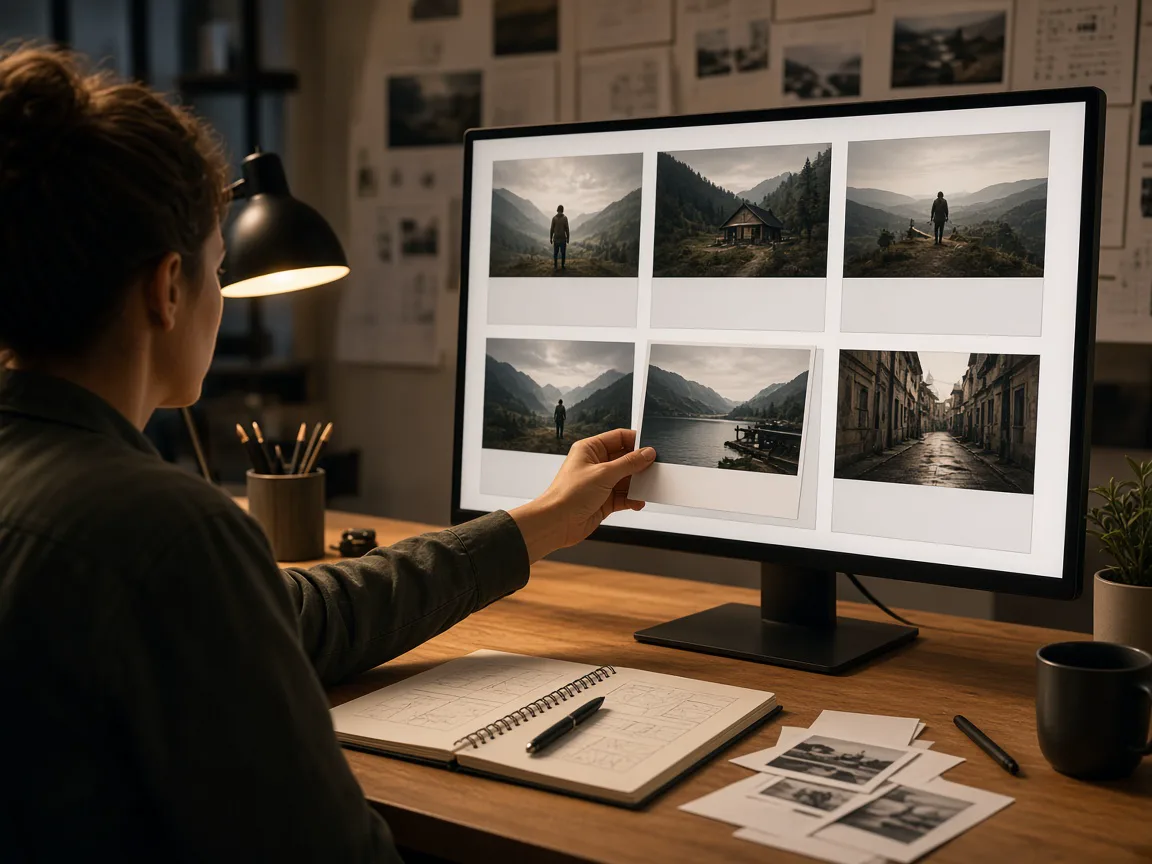
~22× Faster Than Seedance 2.5 at Similar Quality
At similar quality, FLUX 3 Max generation is about 22× faster than Seedance 2.5. Keyframe to video is the point—swap one mid-frame and regenerate in the same creative loop instead of waiting out a long queue.
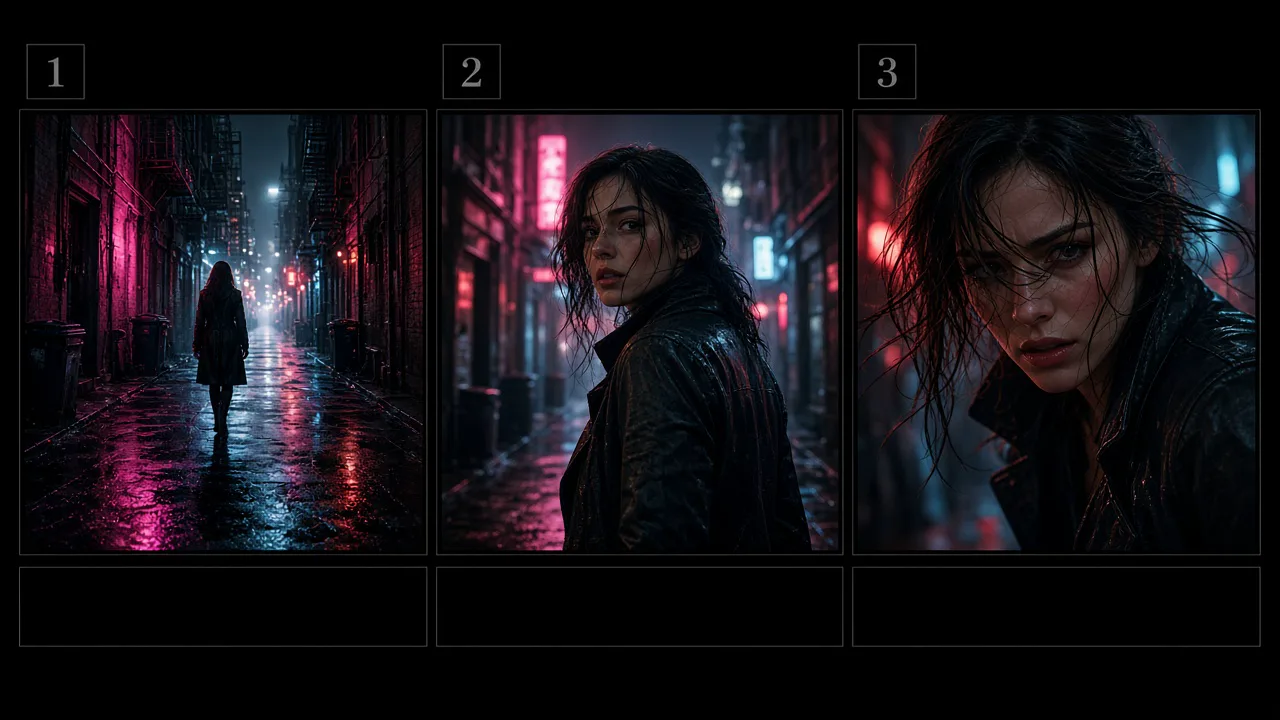
Keyframe to Video, Up to 10 Frames
Drop start, mid, and end stills with unique frame indices on a 24 fps timeline. FLUX 3 Max interpolates action and camera between every pinned moment.

Fast Image to Video When One Still Is Enough
Upload a single approved frame and prompt the move. Same FLUX 3 Max quality when you do not need a full keyframe stack.
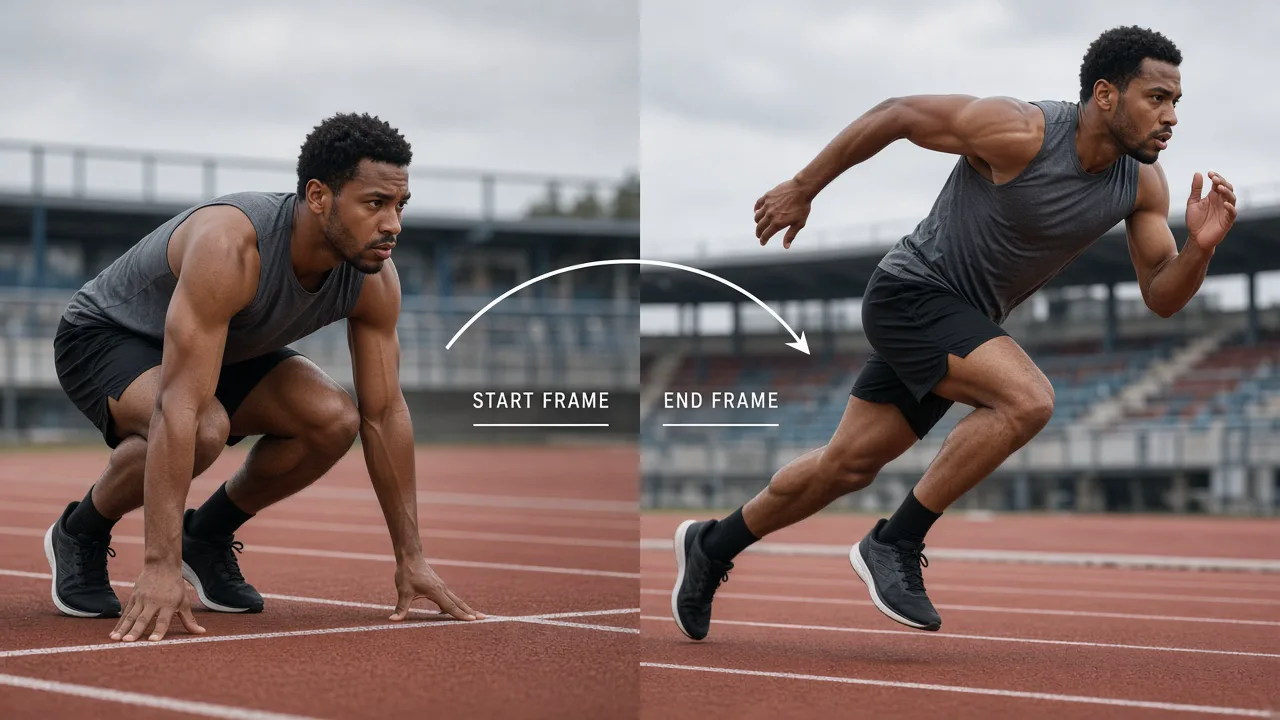
Start + End Anchors, or a Full Beat Sheet
Two frames pin the open and close; more frames storyboard the middle. Place each image where the beat must hit.
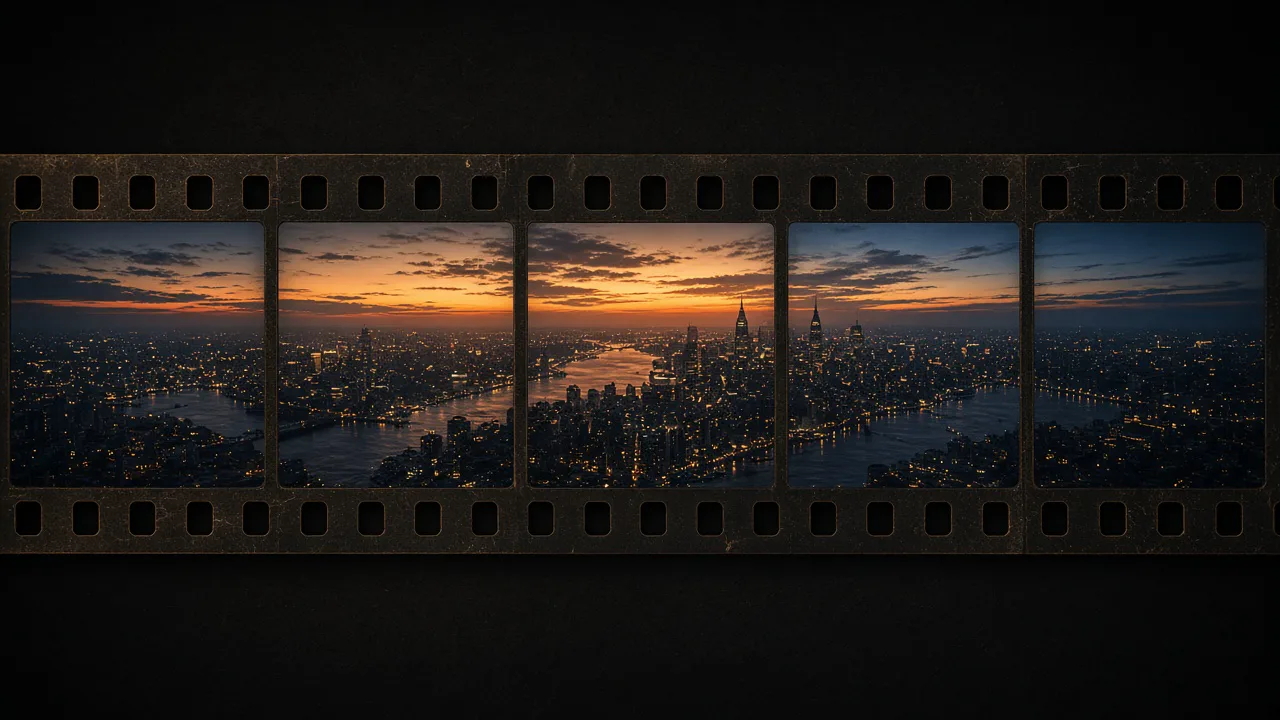
Clips From 5 to 20 Seconds
Long enough for a push-in, orbit, or multi-beat gesture without forcing a thirty-second narrative. Duration steps in whole seconds.
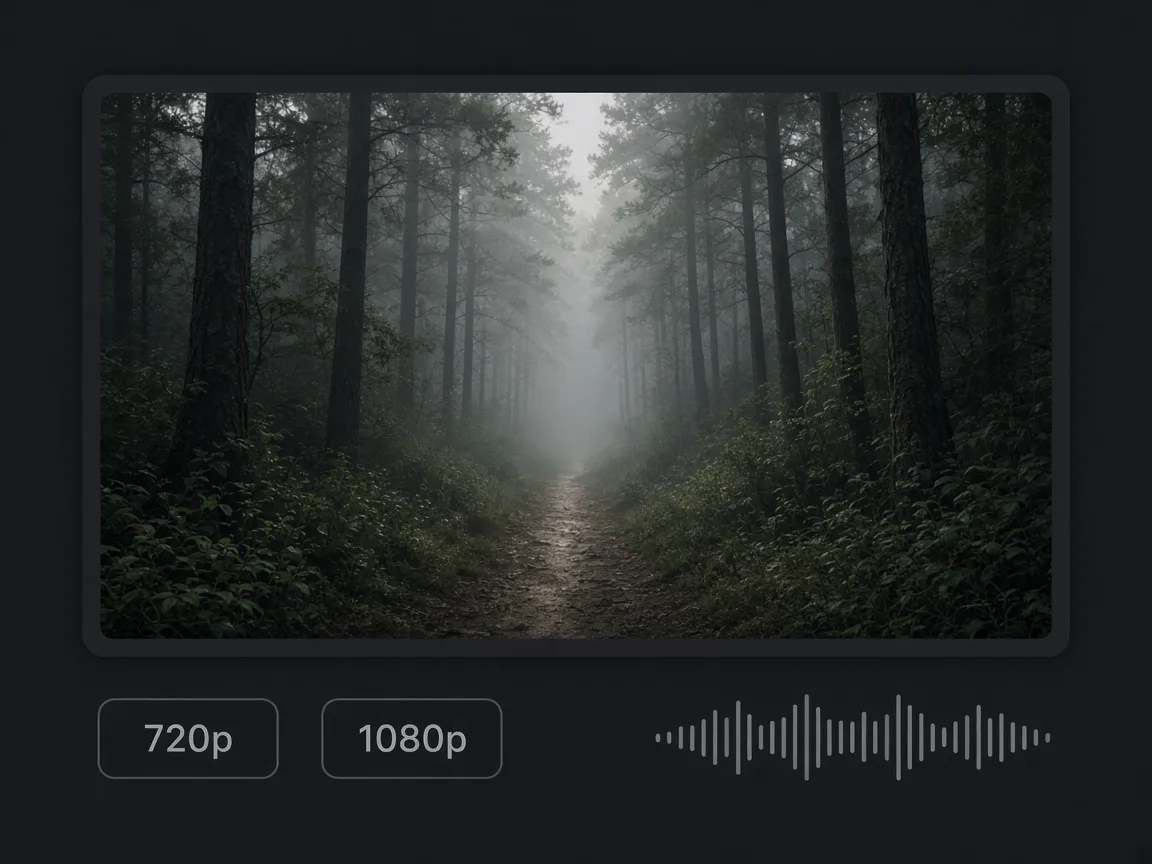
720p and 1080p With Optional Audio
Default 720p for speed; step up to 1080p for delivery. Toggle native audio when the scene needs ambience or leave it silent for a score later.
How to Run Keyframe to Video in FLUX 3 Max
Three steps from pinned stills to a moving take:
 01
Pin Your Keyframes on the Timeline
Add 1–10 images with unique frame indices (24 fps). One frame is image to video; several frames unlock full keyframe to video control.
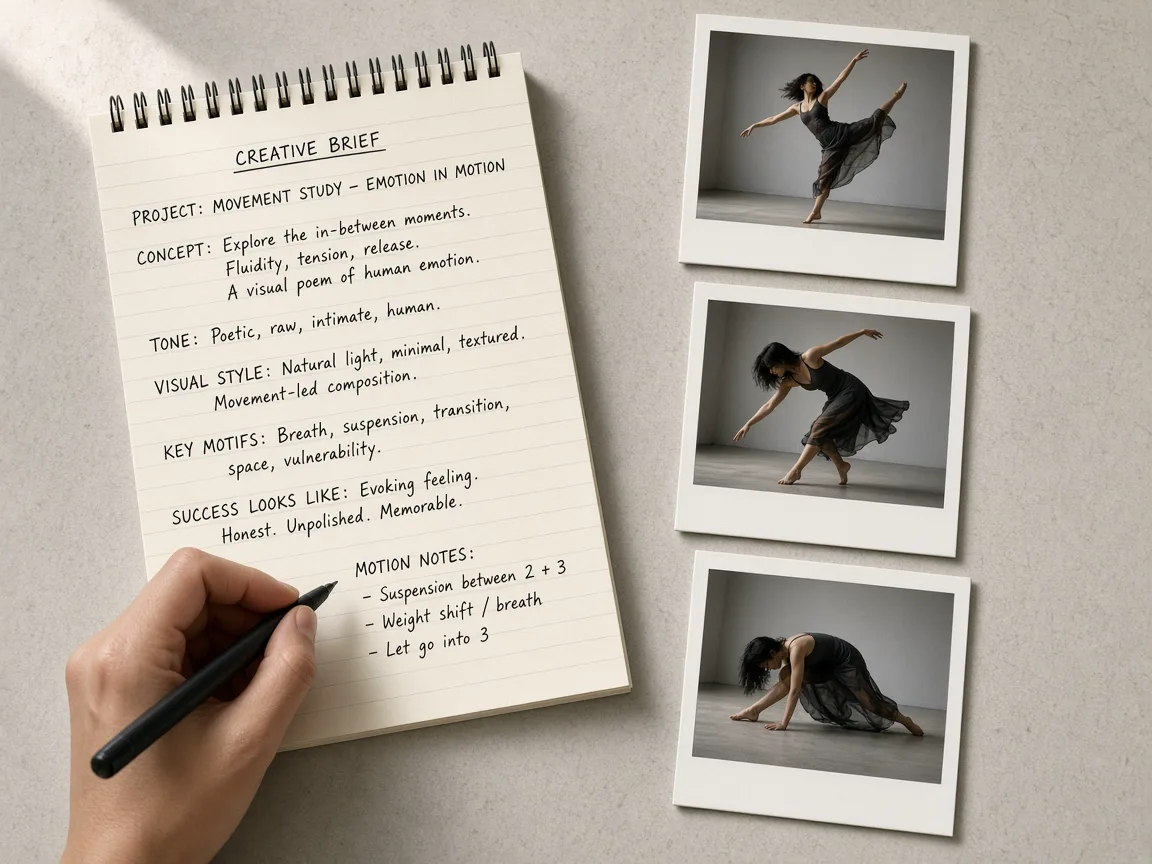 02
Prompt the Motion Between Frames
Stills already lock look and wardrobe. Write what happens between them: subject action, camera path, ambience.
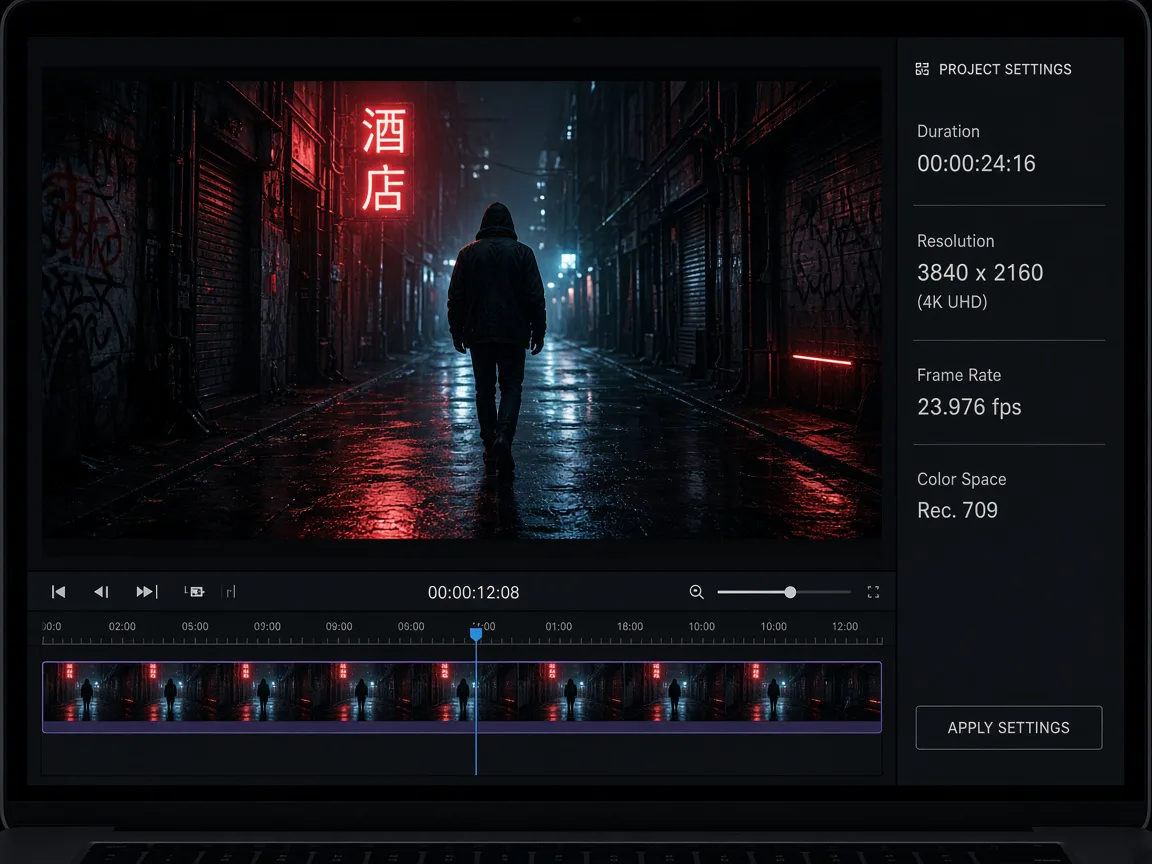 03
Set Duration, Resolution, Generate
Choose 5–20s and 720p or 1080p. Rerun after swapping a single mid-keyframe when only one beat is wrong.
What People Make With FLUX 3 Max Keyframes
Jobs where the stills are approved and keyframe to video must land every beat.
Storyboard Still to Living Beat
Pin panel 1, mid action, and landing. FLUX 3 Max keyframe to video fills the in-betweens so the beat sheet becomes a clip.
- Multi-frame control — Up to ten keyframes on one 24 fps timeline.
- Prompt the transitions — Describe how the camera and subject move between panels.
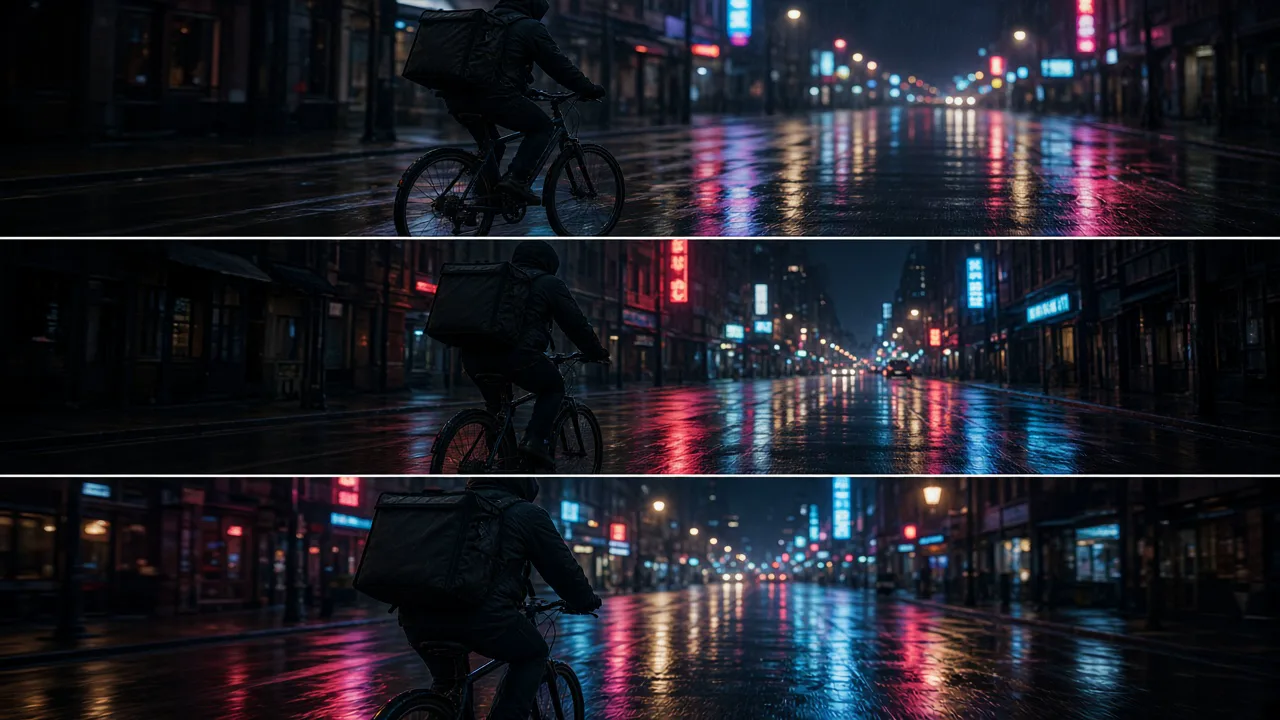
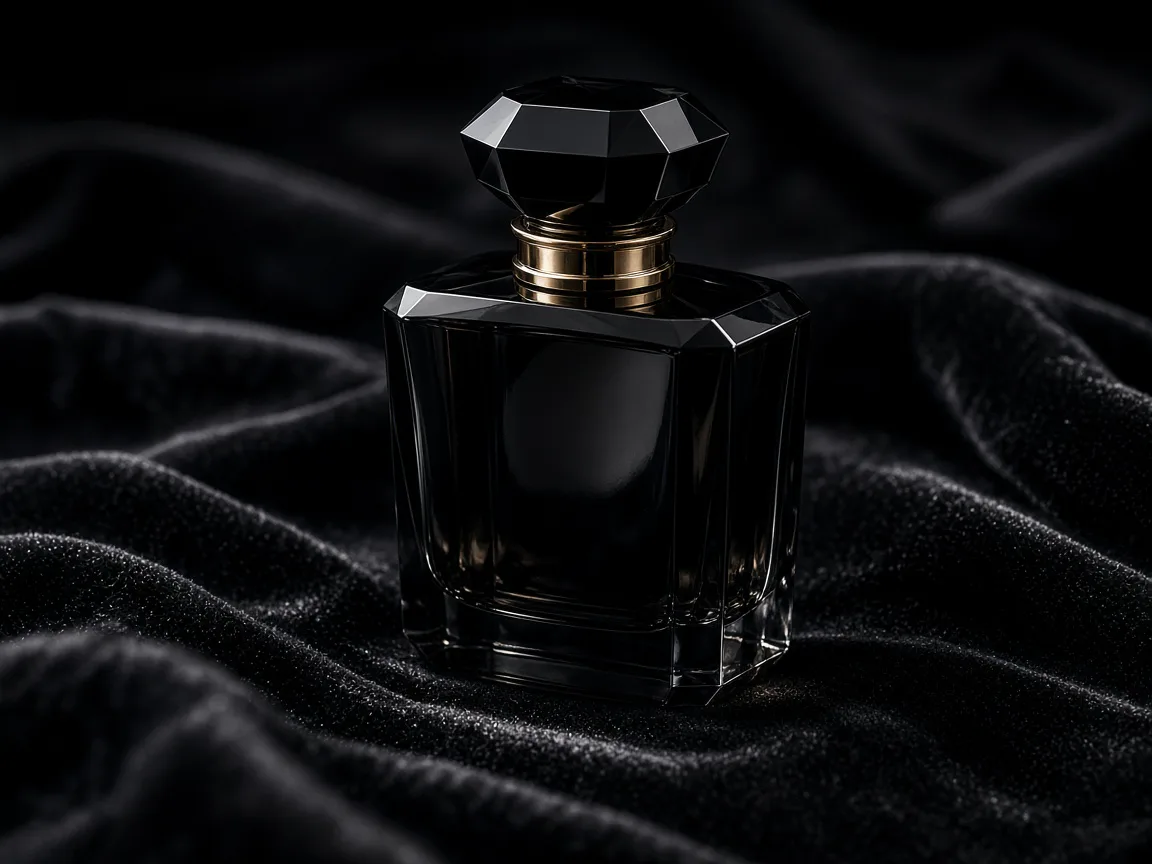
Packshot Push-Ins With Locked Labels
Start from the approved product photo; optionally pin a three-quarter end. Image to video or two-frame keyframes keep the label yours.
- Start frame is law — Do not re-describe the bottle; describe the move.
- Optional end angle — Pin a closing keyframe when the reveal matters.
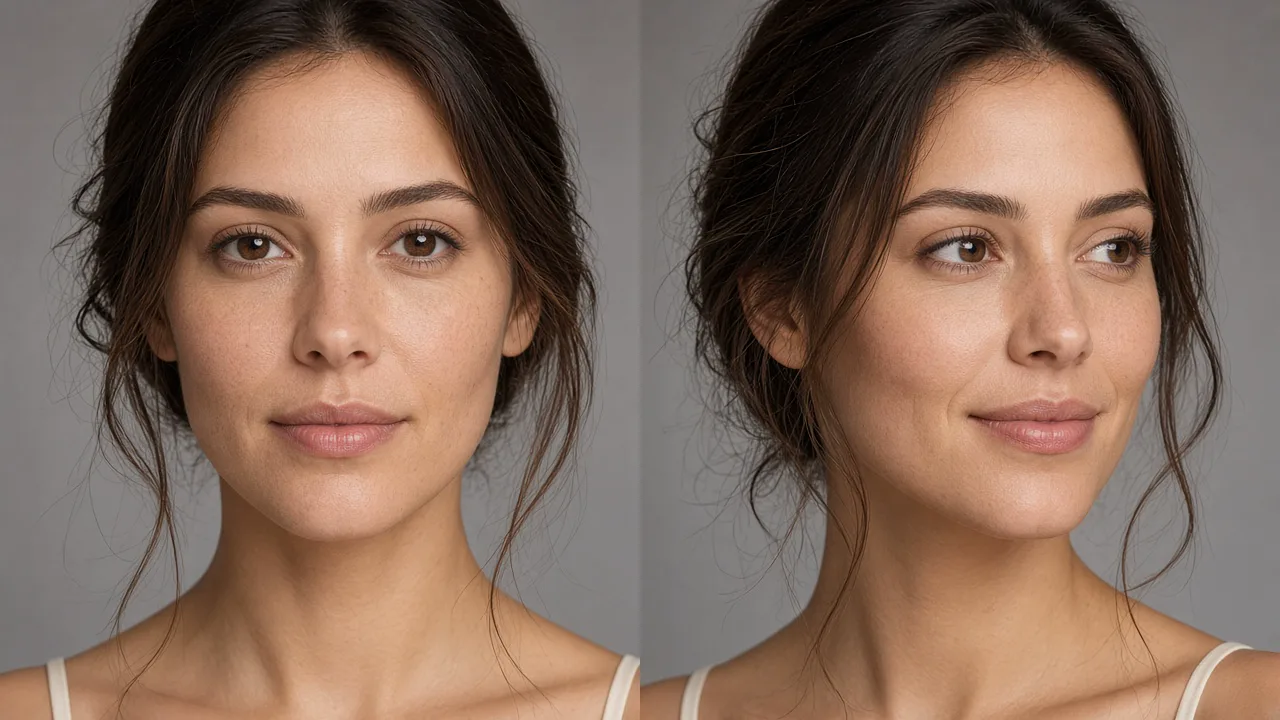
Portrait Pose A → Pose B
Keyframe a head turn or smile: first pose and last pose as stills, motion prompt in between, likeness held across the arc.
- Identity from stills — Both keyframes share the same face reference.
- Gentle motion briefs — Keep prompts light so likeness does not melt.
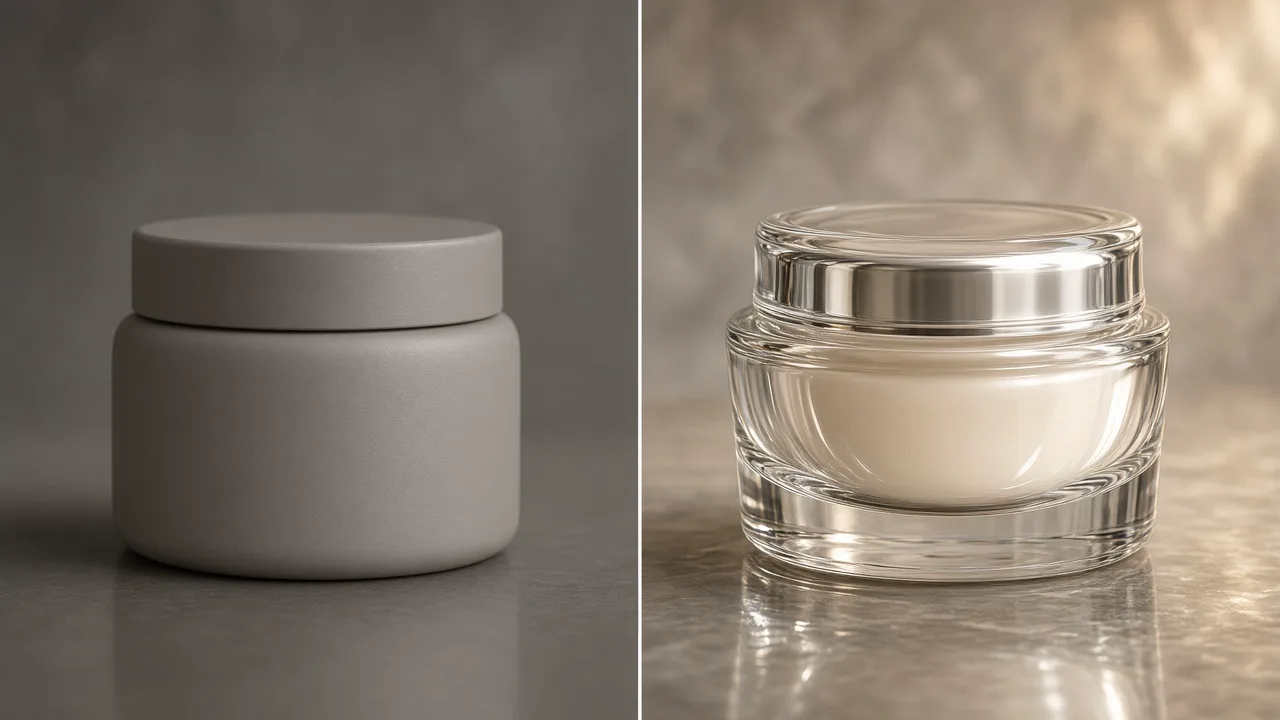
Before/After Product Transitions
Pin before and after hero frames at the open and close. Keyframe to video writes the morph or wipe the brief needs.
- Two anchors, one clip — Start and end keyframes define the brandsafe bookends.
- Audio optional — Add ambience or keep silent for a custom score.
How to Write FLUX 3 Max Keyframe Prompts
Keyframe to video already locks the look at each beat. Weak prompts restate the stills; strong prompts only direct change between them.
A FLUX 3 Max keyframe brief usually covers
- 1Transition — the action that connects keyframe A to B
- 2Camera — push-in, pull-back, orbit, pan, or locked-off between pins
- 3Timing feel — ease into a mid-frame or hit it hard
- 4Environment micro-motion — rain, steam, light flicker that spans the arc
- 5Audio — ambience or silence when generate-audio is on or off
make it cinematic between these frames
She walks the wet neon alley from wide to mid-turn; camera pushes in; rain hiss and distant traffic under the last close-up.
animate this product with keyframes
Slow orbit from front packshot to three-quarter end keyframe over twelve seconds; soft side light held; subtle table reflection shift.
he runs faster
Explode from the crouched start keyframe into the sprint end pose; camera tracks low beside the lane; shoe scuffs and breath.
FLUX 3 Max Keyframe to Video FAQ
FLUX 3 Max keyframe to video lets you pin up to 10 stills to frame indices on a 24 fps timeline. The model generates the motion between those visual moments—ideal when a storyboard must land exact poses. The same page also offers fast image to video from a single still.
Yes—on this platform FLUX 3 Max is positioned as about 22× faster than Seedance 2.5 at similar quality. That speed edge pairs with keyframe to video (up to 10 frames), so storyboard iteration stays interactive. Choose Seedance 2.5 when you need longer multimodal clips; choose FLUX 3 Max when pinned keyframes and turnaround time matter more.
Image to video starts from one opening frame (optional last frame on some flows). Keyframe to video accepts multiple images with unique frame_index values so mid-clip beats stay under your control.
Up to 10 keyframes per clip, each with a unique frame index at most duration × 24.
Signup credits let you generate before paying. Each clip spends credits by duration and resolution. No card is required to create an account.
5 to 20 seconds on this page, in one-second steps.
720p (default) and 1080p.
Yes—optional native audio can be enabled or turned off per generation.
Higher reasoning spends more effort interpreting complex keyframe and motion briefs; it can be slower but helps harder directions.
Studio exposes FLUX 3 Max image-to-video and keyframes-to-video models you can drive from the page. For programmatic access, check the platform API docs for the same catalog entries.
Keep wardrobe and branding consistent across every pinned still, and prompt only the motion between them—do not re-describe identity in ways that fight the keyframes.
Make Your First FLUX 3 Max Keyframe Video
Pin the beats that already passed review. Run keyframe to video—or a single-frame image to video—~22× faster than Seedance 2.5 at similar quality, and spend signup credits on the first cut.